

By default, WordPress stores every uploaded file (PDFs, ZIP archives, images and videos) inside the public /wp-content/uploads/ directory with zero access restrictions. Without the best WordPress file protection plugins active, your private documents, client deliverables and premium downloads remain accessible to anyone who discovers or shares their direct URL.
Setting a WordPress post or page to “Private” or “Password Protected” only hides the text on that page. The direct static file URL remains completely exposed to anyone who copies, shares or guesses the link. This means unauthorized visitors can freely download your paid eBooks, members can share premium course materials with non-subscribers and Google can index your confidential business PDFs directly in search results. Leaving core files like wp-config.php and .htaccess unprotected also leaves your site vulnerable to malicious code injection.
To lock down your digital assets and harden your server against tampering, choosing the best WordPress file protection plugins is essential. In this tested comparison guide, I break down the 7 best WordPress file protection plugins in 2026 to help you mask direct URLs, generate expiring download links and secure your server files against unauthorized access.
Quick Answer: What is the Best WordPress File Protection Plugin?
For preventing unauthorized downloads and masking direct URLs to PDFs, media and digital assets, the best WordPress file protection plugin is Prevent Direct Access (PDA) Gold. For membership and course asset protection, MemberPress ranks among the best WordPress file protection plugins. For monitoring core file integrity and scanning for unauthorized code modifications, Wordfence Security stands out as one of the best WordPress file protection plugins for server defense.
Understanding WordPress File Protection: Two Very Different Problems
When website owners search for “WordPress file protection,” they are almost always trying to solve one of two completely different challenges. Choosing the wrong plugin will leave your website exposed because a security firewall will not stop someone from sharing your private PDF links and a download manager will not stop a hacker from modifying your server scripts.
Scenario A: You Need to Protect Media, PDFs and Downloadable Assets
If you sell digital products, offer gated lead magnets or host private client documents, your primary risk is direct link exposure. Deploying the best WordPress file protection plugins eliminates this risk by encrypting file paths and generating temporary access tokens.
By default, any file uploaded to the WordPress Media Library is stored in the public /wp-content/uploads/ directory. Even if you place a PDF inside a password-protected page, anyone who copies or guesses the direct URL (yoursite.com/wp-content/uploads/2026/08/report.pdf) can access and download that file without logging in.
- Your Goal: Mask direct URLs, prevent Google from indexing private PDFs, generate expiring download links and restrict file access by user role or payment status.
- The Tools You Need: Prevent Direct Access (PDA) Gold, Download Monitor and MemberPress represent the best WordPress file protection plugins for securing media assets.
Scenario B: You Need to Secure Core Server Files Against Attacks
If your concern is website security, malware or unauthorized code injection, your primary risk is server tampering. Utilizing the best WordPress file protection plugins for server defense prevents attackers from altering mission-critical PHP files and executing malicious scripts.
Attackers frequently target sensitive configuration files like wp-config.php (which contains your database passwords) or inject malicious backdoors into /wp-includes/ and theme templates.
- Your Goal: Lock file permissions (such as
644for files and440forwp-config.php), monitor file integrity for unauthorized modifications and disable the in-dashboard code editor. - The Tools You Need: Wordfence Security and All-In-One Security (AIOS) are the best WordPress file protection plugins for core file integrity monitoring.
Summary Comparison Matrix of the Best WordPress File Protection Plugins
| Plugin | Primary Use Case | Direct URL Masking | User Role Gating | File Integrity Scan | Starting Price |
|---|---|---|---|---|---|
| Prevent Direct Access (PDA) Gold | Media & PDF Protection | ✅ Yes | ✅ Yes | ❌ No | Freemium / Paid subscription |
| Download Monitor Pro | Download Tracking & Lead Gate | ✅ Yes | ✅ Yes | ❌ No | Freemium (Pro from $49/yr) |
| MemberPress | Course & Membership Gating | ✅ Yes | ✅ Yes | ❌ No | From $179.50/yr |
| Easy Digital Downloads (EDD) | Selling Digital Goods | ✅ Yes | ✅ Yes | ❌ No | Freemium (Passes from $99/yr) |
| Password Protect WordPress (PPWP) | Password-Gated Files | ✅ Yes | ❌ Password-only | ❌ No | Freemium / Pro available |
| Wordfence Security | Core Integrity & Malware Scan | ❌ No | ❌ No | ✅ Yes | Free / Premium from $119/yr |
| All-In-One Security (AIOS) | File Permissions & Hardening | ❌ No | ❌ No | ✅ Yes | Free / Premium from $70/yr |
7 Best WordPress File Protection Plugins: Protect Media, PDFs and Core Assets
If you sell digital products, manage member-only downloads or share confidential client files, standard WordPress access controls are not enough. Evaluating the best WordPress file protection plugins ensures you select an architecture matched to your server. The tools below specialize in masking direct static file URLs, preventing unauthorized link sharing and generating expiring download tokens for your uploaded assets.
1. Prevent Direct Access (PDA) Gold: Best WordPress File Protection Plugin for Stopping Direct URL Downloads
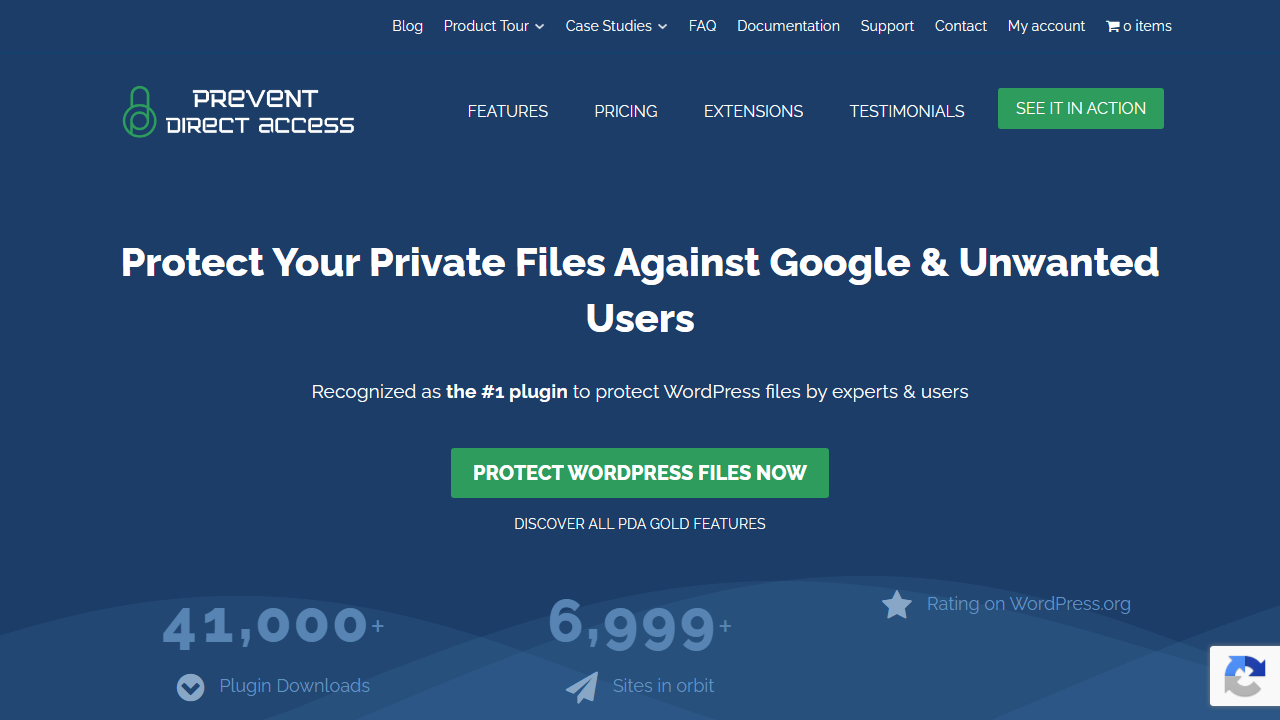
Prevent Direct Access (PDA) Gold is engineered specifically to fix the fundamental media security flaw in WordPress. When you upload files to your Media Library, WordPress places them in a publicly exposed folder that anyone with the link can view.
PDA Gold intercepts incoming HTTP file requests at the server level to ensure only authorized users can download your assets. It replaces static links with dynamic, tokenized URLs that expire automatically after a set duration or click count.
This tool also prevents search engines from indexing private PDFs in search engine results pages. If you distribute premium eBooks, private spreadsheets or confidential client deliverables, PDA Gold delivers the most direct protection available.
Key Features
- Server-Level File Interception: Restricts raw access to
/wp-content/uploads/via Apache.htaccessrules or Nginx rewrite directives. - Search Engine Indexing Shield: Automatically injects
X-Robots-Tag: noindex, nofollowheaders to stop Google from indexing private PDFs. - Expiring Download Links: Generates secure temporary download links based on custom expiry windows or maximum download click limits.
- Granular Role-Based Permissions: Restricts file access by WordPress user roles such as Administrator, Editor, Customer or logged-in members.
- Cloud Storage Offloading Integration: Works seamlessly with Amazon S3 and DigitalOcean Spaces to protect offsite files.
- File Access Analytics: Tracks user download activity, IP addresses and download attempts directly within your dashboard.
Pros
- Completely prevents direct file hotlinking and URL guessing.
- Built-in search engine noindex shielding protects private documents from search results.
- Lightweight footprint that operates smoothly without slowing down front-end page load speed.
Cons
- Requires manual entry of Nginx rewrite rules if your website is hosted on Nginx servers without Apache.
- Lifetime licenses have been discontinued in favor of annual recurring subscriptions.
Pricing
- Free Version: Available on WordPress.org with basic file protection for up to a limited number of files.
- PDA Gold (Personal): Starts at $14.90 per month (billed annually) for 1 site license with automatic updates and priority support.
- Business & Agency Licenses: Higher-tier multi-site plans are available for managing 3 to 30 websites.
2. Download Monitor Pro: Best WordPress File Protection Plugin for Download Tracking and Lead Gating
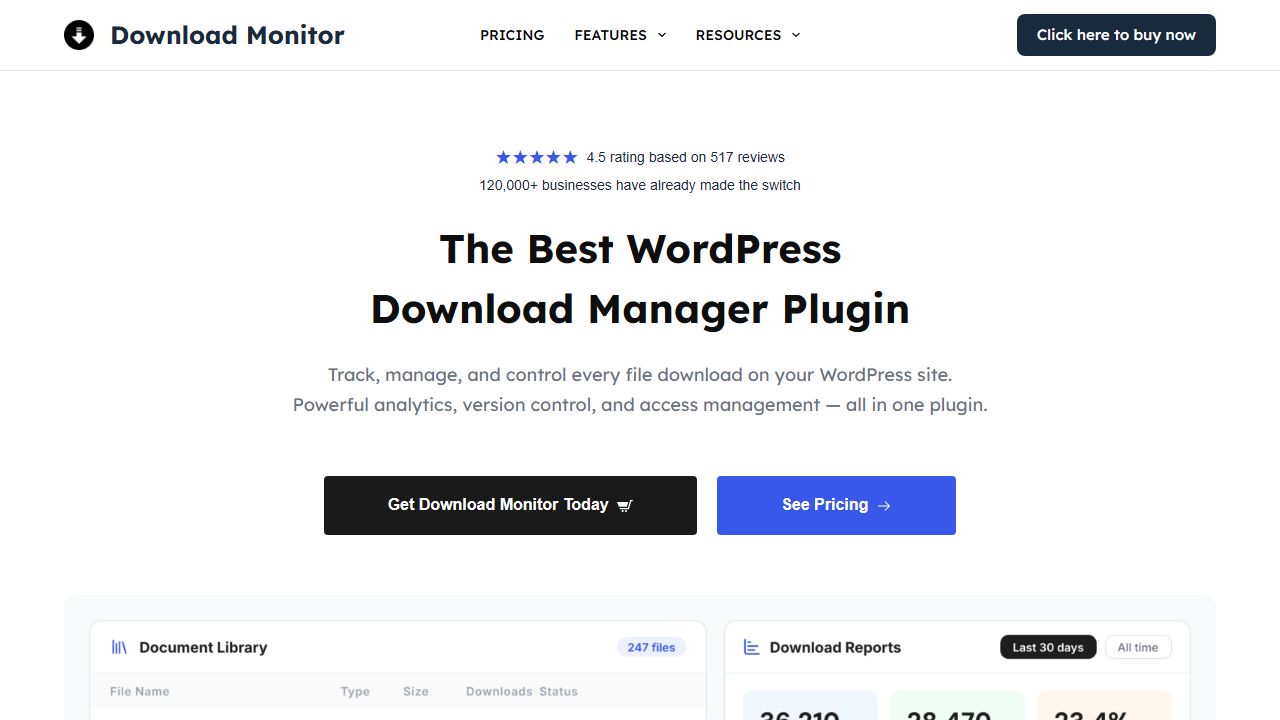
Download Monitor by WPChill ranks among the best WordPress file protection plugins for publishers who need download governance, version control and lead-gating directly inside WordPress. Rather than pasting static file links on your pages, the plugin wraps files into managed download endpoints.
This architecture allows you to track download volume, record user IP addresses and analyze total engagement across all digital assets. It also allows you to gate digital files behind email opt-in forms or mandatory terms-and-conditions agreements before triggering the download.
File versioning features allow you to replace outdated files with new versions without breaking existing links across your site. It is an exceptional solution for digital publishers seeking the best WordPress file protection plugins that pair file security with active lead generation.
Key Features
- Managed Download Endpoints: Masks real file paths by routing visitors through virtual download endpoints.
- Email and Form Locking: Forces visitors to submit a valid email address or fill out a form before the file download unlocks.
- Comprehensive Download Auditing: Logs total downloads, unique visitor counts, user IDs, timestamps and geolocation data.
- Automated File Versioning: Keeps multiple revisions of a document and lets you update files without altering the public link.
- Download Rate Limiting: Enforces maximum download counts per IP address or user account to prevent bandwidth abuse.
- Gutenberg & Page Builder Blocks: Features dedicated blocks and shortcodes for embedding customizable download buttons.
Pros
- Outstanding download analytics and user logging interface.
- Excellent built-in lead-generation locks that turn protected files into email subscribers.
- Simple file version control keeps all existing links working when assets are updated.
Cons
- High-value features such as email locks and cloud storage integration require paid extensions.
- Does not offer full server-level
.htaccessmasking without specific premium add-on configuration.
Pricing
- Free Version: Core plugin is free on the official WordPress repository with essential download tracking.
- Starter Plan: $49 per year for 1 site license with basic extension access.
- Plus Plan: $99 per year with advanced locking features including email lock and terms agreement.
- Pro Plan: $159 per year with full extensions including Google Drive integration and Amazon S3 hosting.
3. MemberPress: Best WordPress File Protection Plugin for Course Creators and Membership Sites

MemberPress is the premier all-in-one membership and course creation plugin for WordPress. Beyond its subscription billing and paywall capabilities, it includes a robust URI-level file protection engine.
This engine allows you to lock down entire directories or file types based on active member subscription tiers. When an unauthorized user attempts to access a protected file, MemberPress automatically redirects them to a sales or login page.
This approach eliminates the need to install separate standalone file protection plugins on membership portals. For online educators and subscription businesses, it provides an airtight ecosystem for protecting recurring revenue.
Key Features
- URI & Extension Rule Protection: Restricts access to entire folders or specific file extensions like
.pdfor.mp4by membership level. - Automated Paywall Redirections: Redirects unauthorized download attempts directly to customized pricing or login pages.
- Integrated LMS Platform: Built-in Course Builder allows you to organize lessons and attach protected downloadable worksheets.
- Recurring Billing Automation: Integrates natively with Stripe, PayPal and Authorize.net for subscription management.
- Drip Content Scheduling: Releases downloadable files and course materials progressively based on member join dates.
- Seamless Gutenberg Integration: Protects individual blocks and file download links directly inside the WordPress editor.
Pros
- Enterprise-grade membership access control combined with automated file gating.
- Built-in redirection turns unauthorized access attempts into new member sales opportunities.
- Eliminates the need for multiple conflicting access plugins on course platforms.
Cons
- Higher price point compared to dedicated standalone file managers.
- Excessive features and complexity if you only need to protect a few standalone PDFs on a blog.
Pricing
- Basic Plan: $179.50 per year for 1 site license with unlimited members and course creation.
- Plus Plan: $299.50 per year for up to 2 sites with developer integrations and custom author roles.
- Pro Plan: $399.50 per year for up to 5 sites with advanced add-ons and affiliate program integration.
4. Easy Digital Downloads (EDD): Best WordPress File Protection Plugin for E-Commerce and Digital Goods
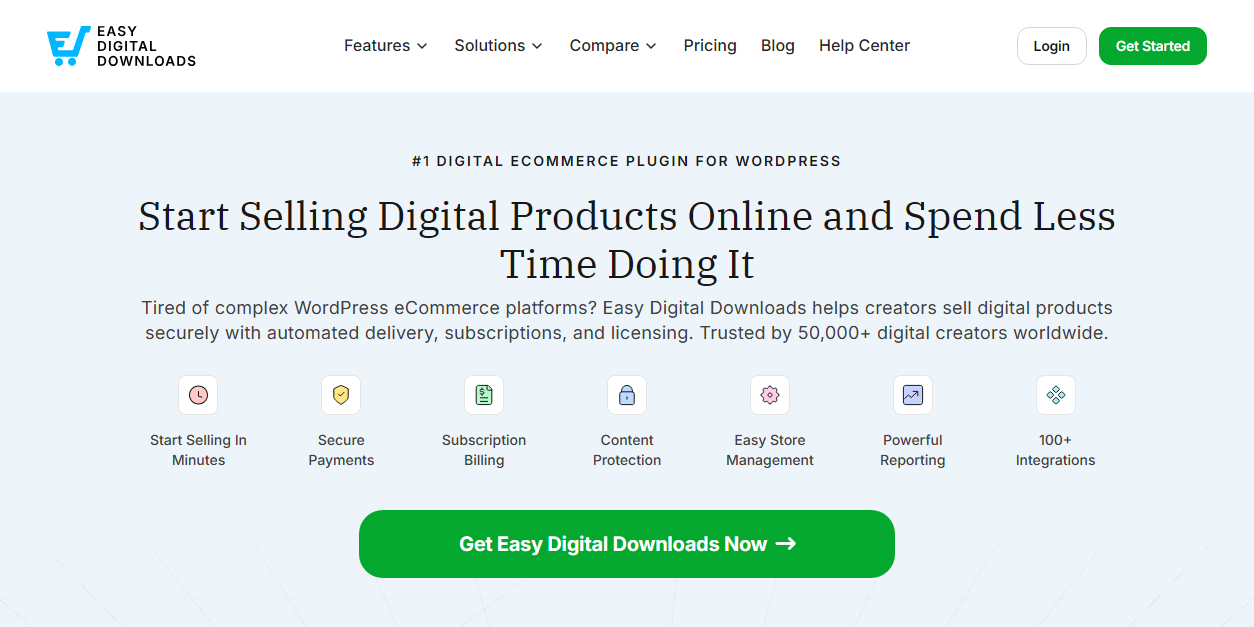
Easy Digital Downloads (EDD) is designed specifically for selling non-physical goods such as software, digital art and eBooks. Unlike general e-commerce plugins that carry heavy physical shipping code, EDD remains streamlined and focused on digital transactions.
Every completed purchase generates a cryptographically tokenized download link that is tied directly to the buyer’s order record. You can set precise limitations on how many times a link can be clicked or how long it remains active after purchase.
EDD also integrates with major cloud storage providers to keep your heavy product files off your primary hosting server. It represents the gold standard for digital product creators who need secure commerce checkout flows.
Key Features
- Cryptographically Tokenized Links: Generates unique expiring download URLs for each customer transaction.
- Strict Download Count Limits: Restricts the total number of times a customer can download a purchased file.
- Link Expiration Windows: Configures download links to expire automatically after a set number of days or hours.
- Cloud Storage Offloading: Connects natively with Amazon S3 and Dropbox to deliver large digital files safely.
- Complete Shopping Cart: Full checkout system with discount codes, customer profiles and sales reporting.
- Software Licensing Engine: Optional extension manages license key generation and software update delivery.
Pros
- Much lighter and faster than WooCommerce for purely digital stores.
- Built-in download limits effectively prevent customers from sharing links on public forums.
- Direct integration with cloud storage providers prevents server bandwidth saturation.
Cons
- Not suitable for gating free resources or managing internal employee files.
- Advanced payment gateways and cloud integrations require premium pass subscriptions.
Pricing
- Free Version: Core EDD plugin is free on WordPress.org for standard digital checkout.
- Personal Pass: $99.50 per year for 1 site license with email marketing and payment tools.
- Extended Pass: $199.50 per year with payment gateway extensions and all-access features.
- Professional Pass: $299.50 per year including software licensing and marketplace functionality.
5. Password Protect WordPress (PPWP) Pro: Best WordPress File Protection Plugin for Password-Gated Portals
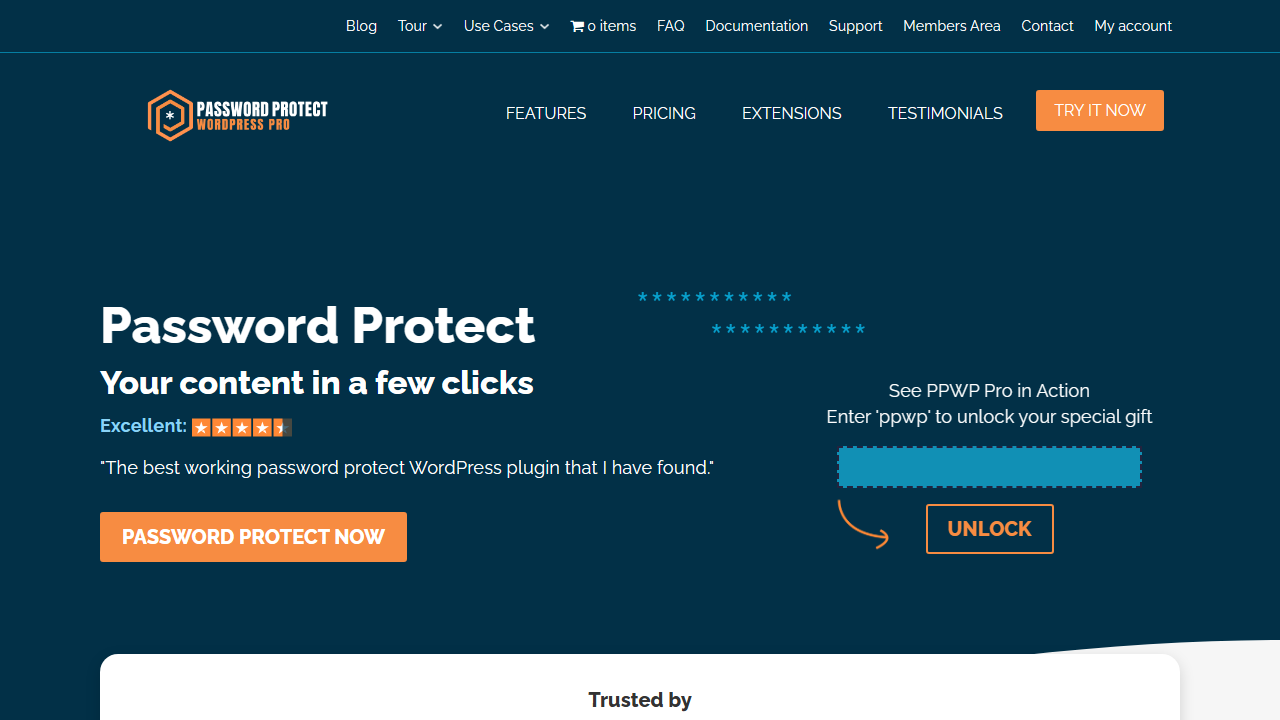
Password Protect WordPress (PPWP) Pro offers a frictionless way to secure files without forcing visitors to create user accounts. The plugin allows you to lock individual documents, entire media categories or custom post types behind secure passwords.
You can issue master passwords to corporate clients or generate single-use passwords that deactivate after being used. It sets secure encrypted access cookies in the visitor’s browser so authorized users do not have to re-enter passwords repeatedly.
PPWP also integrates directly with Prevent Direct Access to ensure underlying static URLs are shielded from discovery. For agencies and freelancers sharing confidential drafts with clients, it delivers simplicity and reliability.
Key Features
- Single and Master Passwords: Protect individual files, pages or full media categories with one or multiple passwords.
- Single-Use Passwords: Creates unique one-time passwords that expire immediately after the file is accessed.
- Expiring Access Cookies: Configures access cookies to expire after specific hours or days to enforce session timeouts.
- No Registration Barrier: Clients can unlock files instantly using a password without going through account registration.
- Direct Integration with PDA: Pairs with Prevent Direct Access to ensure backend
/uploads/URLs cannot be accessed. - Password Usage Tracking: Detailed logs record which passwords were entered, timestamps and visitor IP addresses.
Pros
- No account registration required for clients or external partners to view files.
- Single-use passwords prevent unauthorized pass-along sharing between third parties.
- Clean and simple user interface that takes less than five minutes to configure.
Cons
- Passwords can still be shared manually by users unless single-use passwords are used.
- Premium pricing is relatively high if you only need simple password protection.
Pricing
- Free Version: Basic password protection for WordPress pages and posts is available on WordPress.org.
- PPWP Pro (Single Site): Starts at $178 per year (or $14.90 per month) for 1 site license with full file protection features.
- Multi-Site Plans: Business and Agency plans available for managing 3 to 10 websites.
6. Wordfence Security: Best WordPress File Protection Plugin for Core File Integrity and Threat Scanning
Wordfence Security is the most widely deployed security and file integrity plugin in the WordPress ecosystem. Rather than focusing on download links, Wordfence protects the executable PHP and system files that run your website.
It continuously compares your core WordPress files, plugins and official themes against the pristine records in the WordPress.org repository. If a malicious script alters a theme template or injects code into your core directory, Wordfence flags the exact modification.
Its built-in Web Application Firewall (WAF) blocks malicious traffic and brute-force login attempts before they reach your server. It is an indispensable security layer for keeping your website’s file structure clean and tamper-free.
Related article: Best WordPress Malware Removal Tools and Services
Key Features
- File Integrity Monitoring: Continuously scans core files, themes and plugins for unauthorized code modifications.
- Visual Source Code Difference: Displays a side-by-side comparison showing pristine source code versus modified file code.
- One-Click File Restoration: Automatically repairs altered core WordPress files by overwriting them with original repository files.
- Endpoint Web Application Firewall: Identifies and blocks malicious traffic, SQL injection attacks and cross-site scripting attempts.
- Malware & Backdoor Scanner: Scans server files for known malicious code patterns, web shells and dangerous URL redirects.
- Two-Factor Authentication (2FA): Enforces 2FA and login security to prevent administrative account compromise.
Pros
- Industry standard for detecting unauthorized code modifications and malicious backdoors.
- Side-by-side code diff tool makes it easy to verify whether file changes are legitimate.
- Excellent free tier provides genuine enterprise-grade protection for smaller websites.
Cons
- Does not manage or protect private media downloads from public URL sharing.
- Deep file scans can consume significant server memory on budget shared hosting plans.
Pricing
- Free Version: Highly capable free version on WordPress.org with full malware scanning and firewall protection.
- Wordfence Premium: $119 per year per site for real-time firewall rule updates and real-time malware signatures.
- Wordfence Care: $490 per year per site including complete professional setup and hands-on security management.
- Wordfence Response: $950 per year for 24/7/365 security incident response with 1-hour response times.
7. All-In-One Security (AIOS): Best WordPress File Protection Plugin for Server Hardening and Permission Auditing
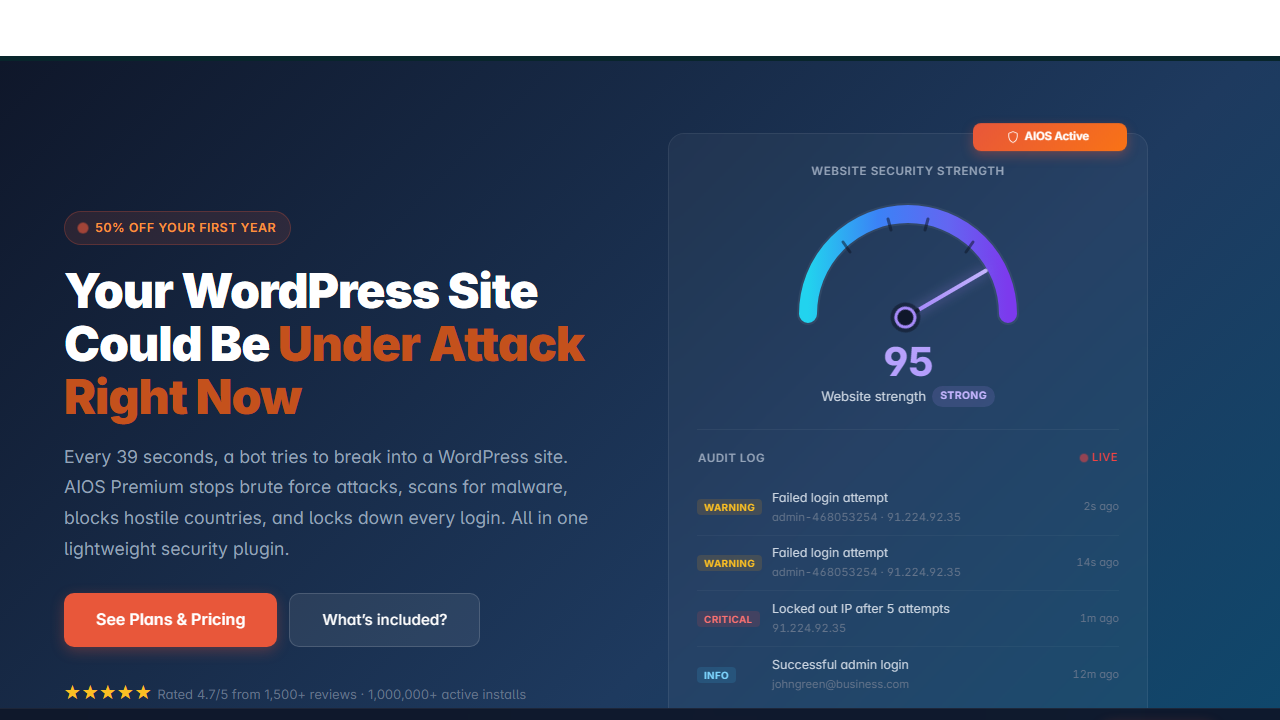
All-In-One Security (AIOS) by Updraft is a comprehensive security and file hardening tool that implements security best practices directly into your server configuration. The plugin audits your file and directory permissions to ensure that critical files like wp-config.php and .htaccess are not overly permissive.
It provides a simple toggle to disable the built-in theme and plugin code editors inside the WordPress admin dashboard. AIOS also prevents directory browsing to stop outsiders from seeing the contents of your /wp-content/uploads/ directory. By applying these rules at the server configuration level, AIOS secures your files without consuming excess PHP runtime resources.
Key Features
- File Permission Auditing: Scans all directory permissions and highlights risky chmod configurations with one-click fix recommendations.
- wp-config.php & .htaccess Protection: Adds strict access denial rules to prevent external inspection or editing of core configuration files.
- Disable Dashboard File Editing: Adds the
DISALLOW_FILE_EDITdirective to neutralize attacks via stolen admin accounts. - Directory Browsing Prevention: Adds
Options -Indexesto server configurations to stop index listings of upload directories. - Disable PHP Execution in Uploads: Prevents malicious
.phpfiles uploaded into/wp-content/uploads/from running. - Database Table Prefix Hardening: Allows you to change the default
wp_database prefix with a single click.
Pros
- Excellent file permission auditing tool with clear visual risk indicators.
- Disables dangerous file execution in the uploads directory to prevent script injection.
- Modifies configuration files cleanly without adding bloat to your WordPress database.
Cons
- Does not create tokenized or expiring download links for media assets.
- Incorrect configuration of advanced firewall rules on older servers can occasionally require manual
.htaccessresets.
Pricing
- Free Version: Fully functional free plugin available on the official WordPress repository.
- AIOS Premium (2 Sites): $70 per year with premium malware scanning and smart two-factor authentication.
- AIOS Premium (5 Sites): $95 per year for growing web agencies.
- AIOS Premium (10+ Sites): $145 per year for multi-client development teams.
How the Best WordPress File Protection Plugins Work Under the Hood
To understand why the best WordPress file protection plugins are necessary, you must understand how web servers handle static file requests.
Apache vs Nginx Considerations
- Apache and LiteSpeed: Plugins like PDA Gold write directly to the
.htaccessfile inside/wp-content/uploads/. Protection takes effect immediately without server restarts. - Nginx: Nginx does not read
.htaccessfiles. Configuring the best WordPress file protection plugins on Nginx requires adding custom location block directives (orX-Accel-Redirectconfigurations) in your host configuration (such as in Cloudways or custom VPS setups) to prevent Nginx from bypassing PHP authentication on static files.
Frequently Asked Questions (FAQ)
Category 1: Media and Download Protection
1. Why are WordPress media uploads publicly accessible by default?
WordPress uploads all media to /wp-content/uploads/ as static assets. Web servers serve static assets directly to browser clients to optimize performance, completely bypassing WordPress PHP authentication checks. Without deploying the best WordPress file protection plugins, your server treats private PDFs and public images identically.
2. Does setting a WordPress page to “Private” protect the PDF files uploaded to it?
No. Setting a WordPress page or post to Private only hides the text on that page. Deploying the best WordPress file protection plugins is necessary because the raw attachment URL remains public and indexable unless intercepted at the server level.
3. How do I stop search engines from indexing my private PDF files?
Deploying the best WordPress file protection plugins like Prevent Direct Access Gold automatically attaches an X-Robots-Tag: noindex, nofollow HTTP response header to protected file requests. This instructs Google, Bing and other search crawlers not to index or display your private documents in search results.
4. Can users share a download link with non-paying users?
With standard WordPress media links, any visitor can share the URL. However, using the best WordPress file protection plugins like Download Monitor Pro or PDA Gold creates tokenized, expiring download links. If a user shares their link, it automatically expires after a preset time window or download click limit.
5. How do expiring download links work?
The best WordPress file protection plugins generate dynamic URLs containing a unique, time-stamped security hash. When a visitor clicks the link, the server verifies whether the token is valid, unexpired and authorized before streaming the file binary via PHP.
6. What is the difference between URL masking and file encryption?
While binary encryption scrambles file contents requiring a decryption key, the best WordPress file protection plugins use URL masking to replace real file paths (/wp-content/uploads/doc.pdf) with virtual endpoints (/download?id=9823&token=xyz), authenticating each user session before streaming the file.
7. Can I protect files hosted on external cloud storage like Amazon S3 or Google Drive?
Yes. Leading options among the best WordPress file protection plugins like PDA Gold, Download Monitor Pro and Easy Digital Downloads offer official cloud integrations. These store private files in Amazon S3, Wasabi or DigitalOcean Spaces and generate expiring pre-signed URLs to protect server bandwidth.
8. Does Cloudflare or a CDN bypass WordPress file protection?
If a public CDN caches protected files, visitors can download the cached file directly from the CDN edge server. The best WordPress file protection plugins automatically send Cache-Control: private, no-cache headers to prevent CDN edge proxies from caching protected media routes.
9. Can I restrict file downloads to specific WordPress user roles?
Yes. Restricting file access by user role is a primary strength of the best WordPress file protection plugins, allowing you to grant access specifically to Administrators, Editors, Subscribers, WooCommerce Customers or active course students while redirecting unauthorized visitors.
10. How can I require an email address before allowing a file download?
The best WordPress file protection plugins for lead generation like Download Monitor Pro feature built-in email-lock extensions. Visitors must submit their email address and confirm opt-in terms before the protected file download button unlocks.
11. How do I prevent users from hotlinking my images and documents?
Hotlink protection features in the best WordPress file protection plugins inspect incoming HTTP referer headers. If an external website attempts to embed your PDF, video or image directly on their domain, the server blocks the request or serves a placeholder.
12. Can a visitor download a file if they view the website’s page source code?
No. When using the best WordPress file protection plugins, viewing the page source code only displays the masked, virtual endpoint URL. The physical server location remains hidden and direct URL guessing returns an access denied error.
13. Does file protection slow down my website?
Serving protected files through PHP requires slightly more processing than serving raw static files. However, the best WordPress file protection plugins are engineered for minimal database overhead and pair with cloud storage offloading to deliver enterprise-grade performance.
14. What file types can I protect in WordPress?
From PDFs, ZIP archives and spreadsheets to MP3 audio and MP4 video files, the best WordPress file protection plugins support all standard WordPress MIME types and custom file extensions.
15. What happens when an unauthorized user clicks a protected file link?
When an unauthorized visitor clicks a protected link, the best WordPress file protection plugins return a 403 Forbidden error, trigger a 404 page or redirect the visitor to a custom login, registration or checkout page.
Category 2: Core Server and File Security
16. What are the correct file permissions for WordPress?
The industry standard secure permissions are 644 for all files, 755 for all directories and 440 or 400 for wp-config.php. Applying these permissions alongside the best WordPress file protection plugins prevents unauthorized script execution across your hosting filesystem.
17. How do I protect my wp-config.php file from unauthorized access?
Hardening wp-config.php using the best WordPress file protection plugins like AIOS adds access denial rules to your .htaccess file, restricts file permissions to 440 and prevents external browsers from viewing sensitive database credentials.
18. What is DISALLOW_FILE_EDIT in WordPress?
Setting define('DISALLOW_FILE_EDIT', true); in wp-config.php complements the best WordPress file protection plugins by completely disabling the built-in theme and plugin code editors in the administrative dashboard, neutralizing attacks from stolen admin accounts.
19. How does Wordfence detect unauthorized file changes?
Wordfence operates among the best WordPress file protection plugins for server defense by comparing local core, theme and plugin file hashes against official WordPress.org repository hashes, highlighting any injected malware or altered code in a visual diff tool.
20. Can a file protection plugin remove malware from compromised files?
While media protection tools focus on gating downloads, the best WordPress file protection plugins for server integrity like Wordfence Security can automatically repair modified core files and quarantine malicious backdoor scripts.
21. How do I disable directory browsing in WordPress?
Adding Options -Indexes to your root .htaccess file or activating directory shielding in the best WordPress file protection plugins prevents visitors from viewing raw file directories in their browser when no default index file exists.
22. What is file integrity monitoring (FIM)?
File Integrity Monitoring (FIM) is an advanced capability within the best WordPress file protection plugins that continuously audits system and core files, alerting administrators immediately if code modifications or unauthorized file additions occur.
23. Can plugins protect the /wp-includes/ and /wp-admin/ directories?
Yes. The best WordPress file protection plugins for server hardening restrict direct script execution inside core system directories like /wp-includes/ and enforce two-factor authentication or IP whitelisting on /wp-admin/.
24. Why should I disable PHP execution in the /wp-content/uploads/ directory?
Disabling PHP execution in the uploads directory is a critical hardening step enforced by the best WordPress file protection plugins, ensuring that even if an attacker successfully uploads a malicious PHP backdoor, the server refuses to execute it.
25. How do I prevent unauthorized editing of .htaccess?
Setting .htaccess file permissions to 644 or 444 alongside the best WordPress file protection plugins locks down server rewrite rules and prevents rogue plugins or attackers from injecting malicious redirects.
Category 3: Integration, E-Commerce and Hosting
26. Does Prevent Direct Access work out-of-the-box on Nginx hosting?
Because Nginx does not parse .htaccess files, deploying the best WordPress file protection plugins like PDA Gold on Nginx requires adding custom location block directives to route file requests through PHP authentication.
27. How does WooCommerce handle file download protection?
WooCommerce includes three native download methods (Force Downloads, X-Accel-Redirect and Redirect only) but pairing store orders with the best WordPress file protection plugins provides enhanced expiring token security and cloud offloading.
28. Which download method is best for WooCommerce?
Choosing the X-Accel-Redirect/X-Sendfile method provides the ideal balance when configuring the best WordPress file protection plugins for WooCommerce, delivering direct link masking without server memory timeouts.
29. Can I use MemberPress just for file protection on a regular blog?
Yes but it is not cost-effective. If you do not require payment gateways or course management, dedicated solutions among the best WordPress file protection plugins like PDA Gold or Download Monitor are more lightweight and economical.
30. How do I protect video files from being downloaded or ripped?
Because standard MP4 files can be captured by browser extensions, the best WordPress file protection plugins pair with encrypted HLS streaming services like Bunny Stream, Vimeo OTT or Wistia for proprietary video content.
31. Is disabling right-click enough to protect my images and documents?
No. Disabling right-click is a superficial cosmetic barrier easily bypassed by inspecting browser source code. Deploying the best WordPress file protection plugins provides true server-side URL masking and session verification.
32. What should I do if a protected download link returns a 404 error?
If a protected download link returns a 404 error, verify that your server rewrite module (mod_rewrite) is enabled and confirm that rewrite rules generated by the best WordPress file protection plugins were not overwritten by a caching plugin.
Final Recommendation: Which of the Best WordPress File Protection Plugins Should You Choose?
Relying on default WordPress file handling leaves your media library open to direct URL harvesting, hotlinking and unauthorized file sharing. Choosing the best WordPress file protection plugins ensures you intercept raw server requests before unauthorized visitors can access sensitive assets.
Your ideal choice depends on your specific monetization model and technical workflow:
- Best for Direct URL Masking & Cloud Offloading: Choose Prevent Direct Access (PDA) Gold as the best WordPress file protection plugins choice for PDF and media shielding with seamless Amazon S3 and Wasabi integration.
- Best for Download Tracking & User Role Gating: Choose Download Monitor if you want the best WordPress file protection plugins workflow for tracking download volume, enforcing member limits and capturing leads.
- Best for Simple Client Portals & Document Access: Choose Password Protect WordPress (PPWP) Pro if you want to lock specific PDFs, spreadsheets or media files behind secure passwords without forcing visitors to register an account.
- Best for Full Membership & Online Courses: Choose MemberPress if you run a recurring subscription site and need native rule-based file protection tied directly to paid membership tiers.
- Best for Digital Product eCommerce: Choose Easy Digital Downloads (EDD) if your primary objective is selling digital downloads with expiring download links and purchase verification tokens.
- Best Free Server-Level Hardening: Use All-In-One Security (AIOS) or Wordfence Security to disable public directory indexing and block malicious PHP execution inside your
/wp-content/uploads/folder.
The 3-Layer Rule for Permanent File Protection
Implementing the best WordPress file protection plugins as part of a structured 3-layer security strategy ensures both your downloadable media and your core server files remain completely protected:
- Server-Level Restrictions: Add rewrite rules in
.htaccessor Nginx to disable directory browsing and block PHP execution inside upload folders. - Application Access Control: Use a dedicated plugin like PDA Gold or MemberPress to generate temporary, tokenized download links for authenticated users only.
- Cloud Storage Offloading: Host massive video and PDF libraries on private Amazon S3 or Wasabi buckets with signed URLs to protect your hosting origin and prevent server timeouts.
If you suspect your media directory has already been exposed to malicious file uploads or rogue execution scripts, review my comprehensive WordPress Malware Removal Guide to audit your server files, clean your database and secure your site against future vulnerabilities.