

Discovering that your WordPress website has been hacked is one of the most stressful experiences for any business owner. Finding the best WordPress malware removal solution quickly is critical to eliminate malicious code before search engines blacklist your domain. Malware can silently infect core files, inject spam into your database, redirect visitors to malicious websites and trigger Google’s alarming red “Deceptive Site Ahead” warning screen.
Attempting to fix malware using generic security tips often makes the situation worse. Standard antivirus tools frequently miss hidden database payloads, disguised backdoor scripts in the must-use plugins directory and rogue administrator accounts.
If you only delete the visible infected files without neutralizing the root backdoor, the malware will reinfect your server within 24 to 48 hours. Worse, prolonged infection leads to Google blacklisting your domain, severe search ranking loss and hosting account suspension.
Eradicating complex WordPress malware requires specialized tools capable of deep heuristic scanning, database sanitization and automated backdoor removal. Selecting the best WordPress malware removal strategy ensures that reinfection cycles are stopped permanently. In this tested guide, I break down the 7 best WordPress malware removal plugins and emergency professional services in 2026 to help you clean your website quickly, remove search engine blacklists and prevent future reinfections.
Quick Answer: What is the Best WordPress Malware Removal?
For fast 1-click automated malware removal without crashing your server, the best WordPress malware removal plugin is MalCare Security. For granular core file diff inspections and server-level threat intelligence, the best WordPress malware removal tool for developers is Wordfence Security. For emergency hands-on human intervention and guaranteed Google blacklist removal, the best WordPress malware removal service is Sucuri Incident Response.
The 4-Phase Malware Emergency Triage Protocol
If your website is currently hacked, follow this 4-phase triage protocol to execute the best WordPress malware removal procedure before running any automated tools or editing server files:
- Quarantine and Snapshot: Take a complete database snapshot, place your website in Maintenance Mode and freeze all active user accounts.
- Deep Forensic Scan: Scan your core and theme files, query your database for hidden redirect scripts and inspect active scheduled cron jobs.
- Surgical Cleaning: Run an automated cleanup tool or manually overwrite core files and purge rogue administrator users.
- Delisting and Hardening: Rotate all secret security keys, submit a review request in Google Search Console and configure an active firewall.
Comprehensive Comparison: Best WordPress Malware Removal Solutions
| Security Tool or Service | Primary Specialty | Scan Architecture & Server Load | Malware Cleanup Method | Database & Backdoor Cleaning | Firewall Protection | Blacklist Delisting | Starting Price (2026) |
|---|---|---|---|---|---|---|---|
| MalCare Security | Fast 1-Click Automated Cleaning | Cloud Offsite (Zero Server Load) | Instant 1-Click Surgical Removal | Complete Database & Obfuscated Code | Real-Time Endpoint WAF | Step-by-Step Guided | Free / $149/year |
| Wordfence Security | Core File Diffs & Code Forensics | Local Server (Moderate CPU Load) | Automated Core File Overwrite | Core Files & Manual Review Tools | PHP Endpoint WAF | Self-Serve / Wordfence Care | Free / $119/year |
| Sucuri Security | Complete Enterprise Remediation | DNS Edge Proxy (Zero Server Load) | Automated & Dedicated Security Engineers | Full Database, Files & Cron Sanitization | Cloud DNS Anycast WAF | Guaranteed Full Service | From $199.99/year |
| CleanTalk Security | Budget Scanner & Anti-Spam Shield | Cloud Assisted (Low CPU Load) | Automatic Sandbox File Quarantine | Basic Table Script Detection | Cloud IP & Country Filter | Self-Serve Guidance | From $9/year |
| Astra Security | Interactive SaaS Dashboard & WAF | Cloud & Endpoint (Low Server Load) | 1-Click Dashboard Remediation | Full Database & Webshell Purge | Smart Community WAF | Included on Pro Plans | From $199/year |
| Patchstack | Real-Time Virtual Patching | Lightweight Agent (Zero DB Bloat) | Auto-Applied Virtual Patches | Pre-Exploit Vulnerability Neutralization | Virtual Patching Engine | Advisory & Threat Feed | Free / $5/month |
| FixRunner | Emergency Human Incident Response | Dedicated Security Engineer Audit | Hands-On Manual Disinfection | Complete Database, Tables & Server Cron | Post-Hack Server Hardening | Full Google Delisting SLA | From $99/incident |
1. MalCare Security: Best WordPress Malware Removal for One-Click Automated Deep Cleaning

MalCare Security delivers the best WordPress malware removal experience for site owners who need automated, cloud-powered cleaning without technical complexity. Unlike traditional plugins that run heavy scans directly on your web host, MalCare offloads the entire scanning process to its dedicated cloud servers.
This architecture ensures your live website speed and server CPU are never compromised during intensive scans. Its proprietary heuristic algorithm analyzes code patterns rather than relying solely on static signature databases.
This allows MalCare to identify complex obfuscated PHP scripts and zero-day backdoors that other scanners overlook. Its standout feature is its powerful one-click automated malware removal engine that surgically disinfects infected files while leaving valid code intact.
Key Features
- Cloud-powered scanning engine runs deep file and database scans on external servers without slowing down web hosting.
- One-click instant malware removal engine cleans malicious code snippets, eval functions and database injections safely.
- Heuristic threat detection catches complex obfuscated malware and unknown zero-day vulnerabilities through code behavior analysis.
- Integrated real-time firewall blocks malicious bot traffic, brute-force attacks and exploit attempts before they reach WordPress.
- Built-in vulnerability scanner monitors installed plugins and themes for publicly disclosed security flaws.
- Automated offsite backup system creates encrypted daily cloud backups for reliable emergency recovery.
Pros
- Zero performance impact on your hosting server during deep file and database scans.
- Instant 1-click automated cleaning safely removes malicious code without corrupting site design.
- Exceptionally high accuracy in detecting base64 encoded scripts and hidden backdoor files.
Cons
- The proprietary scanning engine is closed-source and hosted externally.
- Premium subscription is required to unlock the automated 1-click cleanup feature.
Pricing
- Free Version: Basic scanner available on WordPress.org that detects infections. For low-cost routine audits, CleanTalk proves that the best WordPress malware removal does not have to cost hundreds of dollars.
- Plus Plan: Starts at $149 per year for 1 website license with unlimited 1-click automated malware removal. If you need the best WordPress malware removal without risking server crashes, MalCare is my top recommendation.
- Pro Plan: $299 per year with real-time firewall rule updates, automated daily backups and staging support. If your business depends on zero downtime, Sucuri offers the best WordPress malware removal package available.
2. Wordfence Security: Best WordPress Malware Removal for Core File Integrity Restoration

Wordfence Security provides the best WordPress malware removal capabilities for technical users who need deep endpoint scanning and direct file comparison against official repository hashes. Powered by an extensive threat intelligence network, Wordfence inspects files directly on your web server.
Its scanning engine compares every core file, official theme and repository plugin against pristine source code records on WordPress.org. When Wordfence detects an unauthorized modification, it provides a visual side-by-side code diff tool showing exactly what was added or altered.
It features an automated repair function that overwrites infected core files with original pristine versions. For technical site owners and developers who require granular visibility into file alterations, Wordfence offers unmatched control.
Key Features
- Core file integrity verification matches local files against official WordPress.org cryptographic hashes.
- Visual side-by-side code difference tool highlights exact malicious code injections next to pristine repository code.
- One-click file repair tool automatically replaces modified core files with clean original copies.
- Endpoint web application firewall inspects incoming traffic directly at the PHP level to block SQL injections and cross-site scripting.
- Live traffic monitor displays real-time security events, blocked brute-force attempts and suspicious crawler activity.
- Advanced login security enforces Two-Factor Authentication (2FA) and custom login attempt limits.
Pros
- Industry-leading threat intelligence network backed by dedicated security researchers.
- Granular side-by-side code comparison makes manual inspection transparent and reliable.
- The free tier provides substantial scanning power for budget-conscious site owners.
Cons
- Server-side scanning can temporarily increase CPU and memory utilization on budget shared hosting.
- Database-level malware cleanups require manual query editing or upgrading to Wordfence Care.
Pricing
- Free Version: Full-featured free scanner and endpoint firewall with community threat feed updates (30-day signature delay).
- Wordfence Premium: $119 per year per website for real-time malware signatures and real-time IP blocklists. For administrators wanting the best WordPress malware removal tool with line-by-line file diff verification, Wordfence is unmatched.
- Wordfence Care: $490 per year per website including full hands-on professional malware removal by Wordfence engineers.
- Wordfence Response: $950 per year with 24/7/365 emergency incident response and a guaranteed 1-hour response window.
3. Sucuri Security: Best WordPress Malware Removal Service for Cloud Proxy Firewall and Complete Remediation

Sucuri Security is a globally recognized authority in enterprise website protection and incident response. The platform combines an endpoint monitoring plugin with a powerful DNS-level cloud proxy firewall. By routing your domain traffic through Sucuri’s global Anycast network, malicious requests and DDoS attacks are filtered out before they reach your hosting origin.
When an active infection occurs, Sucuri provides dedicated security analysts who manually disinfect your files and database. Their team also handles Google Search Console blacklist removal to clear the “Deceptive Site Ahead” warning banner. For mission-critical corporate websites and high-traffic stores, Sucuri delivers complete peace of mind.
Key Features
- Remote security scanner regularly checks website files, DNS records and SSL certificates from external vantage points.
- Cloud-based Anycast firewall intercepts traffic at the DNS edge layer to block malicious bots and exploit attempts.
- Dedicated human remediation assigns professional security engineers to manually clean files and database entries.
- Search engine blacklist removal submits formal delisting requests to Google, Bing, McAfee and Norton.
- Post-hack hardening service reconfigures security settings, secret keys and administrative passwords.
- Comprehensive audit logging tracks user logins, failed password attempts and file changes inside your dashboard.
Pros
- Full-service manual remediation handles complex database injections and multi-layered backdoors.
- Complete blacklist delisting assistance restores organic search rankings and removes browser warnings.
- Cloud proxy firewall protects hosting servers from bandwidth saturation and brute-force attacks.
Cons
- Implementing the cloud firewall requires changing your domain DNS nameservers or A records.
- Turnaround time on the basic tier can take up to 30 hours for non-emergency cleanups.
Pricing
- Free Plugin: Available on WordPress.org for basic file integrity monitoring and post-hack notifications.
- Basic Platform: Starts at $199.99 per year for 1 website with malware removal completed within 30 hours.
- Pro Platform: $299.99 per year with 6-hour scan intervals and custom SSL certificate support.
- Business Platform: $499.99 per year with a priority 6-hour malware removal SLA and 30-minute scan intervals.
4. CleanTalk Security: Best WordPress Malware Removal Plugin for Budget-Friendly Threat Scanning

CleanTalk Security offers a remarkably affordable cloud-based security suite tailored for budget-conscious site owners and small blogs. The plugin pairs automated malware scanning with an industry-leading anti-spam engine. It scans WordPress core files, themes, plugins and database tables against known vulnerability databases and heuristic indicators.
CleanTalk automatically quarantines suspicious files to prevent malicious code from executing across your hosting environment. It also features a real-time traffic inspector that blocks dangerous IP addresses, known proxies and malicious crawlers. For website owners seeking reliable baseline protection without paying enterprise subscription rates, CleanTalk provides tremendous value.
Key Features
- Automated cloud file scanner checks internal files and media folders for heuristic malware patterns.
- Database inspection scans database tables for suspicious script tags, redirect strings and spam injection links.
- Automated file quarantine isolates infected files into a secure sandbox to prevent execution.
- Comprehensive anti-spam shield blocks comment spam, registration bot attacks and contact form abuse without CAPTCHAs.
- Security firewall with IP blocking restricts access by country, network subnet or specific malicious IP addresses.
- Daily security reports send automated email summaries detailing file status and blocked attack attempts.
Pros
- Exceptionally low pricing makes it accessible for any personal blog or side project.
- Combines active malware scanning with top-tier automated spam filtering in one lightweight tool.
- Automatic quarantine stops newly injected backdoors from running.
Cons
- Does not offer automated 1-click code repair for heavily modified core files.
- Advanced manual cleanup assistance is not included in the standard license.
Pricing
- CleanTalk Security & Anti-Spam: Starts at only $9 per year per website with full scanning and cloud firewall features.
- Multi-Site Packages: Discounted packages available for agencies managing multiple client sites.
5. Astra Security: Best WordPress Malware Removal Suite for Interactive Threat Management

Astra Security provides a modern SaaS-driven cybersecurity suite that combines endpoint monitoring with an intuitive central management dashboard. Designed to simplify security for non-technical users, Astra replaces complex security logs with actionable visual alerts. Its intelligent malware scanner analyzes file modifications, rogue database scripts and unauthorized file uploads continuously.
Astra also features an automated virtual patching engine that neutralizes known plugin vulnerabilities before developers release official updates. Its interactive dashboard allows site owners to review threats, whitelist trusted IPs and trigger on-demand cleanups with a single click. It is an excellent choice for expanding e-commerce stores and digital agencies.
Key Features
- Machine-learning scanner detects polymorphic malware, webshells and encoded backdoors using heuristic algorithms.
- Automated malware cleanup removes infected files and malicious script tags directly from the central dashboard.
- Virtual patching engine neutralizes emerging zero-day vulnerabilities in third-party plugins automatically.
- Smart community firewall leverages global threat intelligence to block bad bots and SQL injections.
- Admin login shield protects login endpoints with adaptive two-factor authentication and bot protection.
- Continuous vulnerability auditing scans site configuration for weak passwords and exposed directories.
Pros
- Clean and highly intuitive SaaS dashboard makes security monitoring straightforward.
- Virtual patching protects vulnerable plugins before official developer patches are installed.
- Automated malware removal resolves common script injections without requiring developer assistance.
Cons
- Requires recurring monthly or annual SaaS billing that is higher than standard standalone plugins.
- Full automated cleanup features are reserved for the Pro and Business tiers.
Pricing
- Essential Plan: $19 per month (or $199 per year) for basic firewall and automated malware scanning.
- Pro Plan: $39 per month including automated malware removal, virtual patching and scheduled scanning. For agencies managing multiple client sites, Astra delivers the best WordPress malware removal dashboard on the market.
- Business Plan: $119 per month with priority malware cleanup support and custom security audit reviews.
6. Patchstack: Best WordPress Malware Removal Companion for Real-Time Virtual Patching

Patchstack is an advanced security intelligence platform engineered specifically to protect WordPress sites against emerging plugin and theme vulnerabilities. Unlike standard scanners that only check files after an infection occurs, Patchstack focuses on pre-exploit prevention and automated vulnerability mitigation.
The platform is backed by the Patchstack Red Team, a global community of ethical security researchers who discover and document security flaws across the WordPress ecosystem.
When a zero-day flaw or unpatched vulnerability is uncovered in any plugin on your website, Patchstack deploys an instant “virtual patch” at the application layer. This auto-applied rule shields your site from exploit attempts without modifying plugin source code or waiting for developers to release an official update.
Key Features
- Automated virtual patching neutralizes active zero-day exploits and plugin vulnerabilities in real time.
- Powered by an official CVE Numbering Authority (CNA) database providing early threat alerts before public disclosures.
- Continuous component monitoring tracks installed plugins, themes and WordPress core files against active security advisories.
- Hardening modules allow users to disable application passwords, block author enumeration and secure XML-RPC endpoints.
- Community threat sharing network coordinates with plugin authors to test and deploy verified security fixes.
- Lightweight agent architecture runs with minimal server overhead and zero database bloat.
Pros
- Virtual patching blocks attacks before official plugin developer updates are published.
- Official CVE Numbering Authority with first-look access to emerging WordPress security threats.
- Very lightweight footprint that does not add heavy database queries or increase server response times.
Cons
- Does not include a direct post-infection malware removal tool for already compromised database tables.
- Best paired with an incident cleanup tool if an active backdoor is already present on the server.
Pricing
- Free Community Plan: Basic vulnerability detection and security alerts for WordPress plugins and themes.
- Developer / Pro Plan: Starts at $5 per month per website for real-time virtual patching, automated protection and priority alerts. Pairing Patchstack with a scanner ensures the best WordPress malware removal results by eliminating root vulnerabilities.
- Agency & Enterprise: Volume discounts available for multi-site managers and agencies.
7. FixRunner: Best WordPress Malware Removal Service for Dedicated Emergency Human Remediation

FixRunner is a premier WordPress support and emergency maintenance agency providing dedicated 24/7 human technical remediation. When automated plugins fail to clean deep database injections or when your web host shuts down your account due to an active malware infection, FixRunner delivers hands-on engineering assistance.
Their security team performs deep manual forensic audits across your core files, uploads folders, database tables and cron schedules. In addition to eradicating persistent backdoors and webshells, FixRunner manages the entire search engine delisting process with Google Safe Browsing, Bing and Norton to remove deceptive site warning banners and restore organic rankings.
Key Features
- Dedicated security engineers perform manual source code and database audits to eliminate hidden backdoors.
- Fast emergency response SLA with one-time incident malware disinfection packages.
- Complete search engine delisting assistance to remove Google red screen warnings and domain blacklists.
- Post-cleanup site hardening reconfigures server file permissions, security salts and login endpoints.
- Full site backup and staging verification before applying code edits to prevent data loss.
- Comprehensive post-remediation report detailing root vulnerability causes and recommended preventive steps.
Pros
- Hands-on human expertise handles complex multi-vector infections that confuse automated scanners.
- Direct assistance with Google Search Console blacklist appeals and hosting unblock requests.
- Includes post-cleanup hardening to ensure attackers cannot re-enter through residual vulnerabilities.
Cons
- One-time incident response costs more than standard self-serve automated scanner plugins.
- Turnaround time depends on human engineer availability compared to instant 1-click cloud tools.
Pricing
- One-Time Malware Removal: Starts around $99 to $14999to149 for a full emergency cleanup, database disinfection and blacklist removal.
- Monthly Support Plans: Ongoing maintenance and security monitoring plans starting from $69 per month.
Related reading material: Best WordPress File Protection Plugins
Step-by-Step Manual DIY WordPress Malware Removal Playbook
If automated plugins fail or your hosting provider has locked your server due to an active infection, follow this comprehensive manual disinfection process to clean your website files, database and core security settings:
Step 1: Replace WordPress Core Files
Hackers frequently modify core files in /wp-admin/ and /wp-includes/ to hide malware execution scripts. Replacing these folders with fresh copies from the official repository guarantees that all core files are restored to their pristine state.

- Download a fresh, clean
.ziparchive of the exact WordPress core version you are running from the official WordPress.org Download Repository. - Connect to your web server using SFTP (FileZilla or Cyberduck) or your hosting cPanel File Manager.
- Delete the
/wp-admin/and/wp-includes/folders completely from your server. - Upload the fresh
/wp-admin/and/wp-includes/directories from the unzipped WordPress archive. - Re-upload all root core files (
wp-login.php,wp-settings.php,wp-cron.phpandindex.php) except forwp-config.php.
Download a fresh, clean .zip archive of the exact WordPress core version you are running from the official WordPress.org Download Repository.
Connect to your web server using SFTP (FileZilla or Cyberduck) or your hosting cPanel File Manager.
Delete the /wp-admin/ and /wp-includes/ folders completely from your server.
Upload the fresh /wp-admin/ and /wp-includes/ directories from the unzipped WordPress archive.
Re-upload all root core files (wp-login.php, wp-settings.php, wp-cron.php and index.php) except for wp-config.php.
Step 2: Sanitize wp-config.php and .htaccess
Sanitizing server configuration files is a mandatory step in the best WordPress malware removal playbook, as attackers often insert malicious redirects into .htaccess and embed persistent backdoors inside wp-config.php.

- Open your root
.htaccessfile and replace all existing text with the default clean WordPress rewrite rules:
# BEGIN WordPress
RewriteEngine On
RewriteRule .* - [E=HTTP_AUTHORIZATION:%{HTTP:Authorization}]
RewriteBase /
RewriteRule ^index\.php$ - [L]
RewriteCond %{REQUEST_FILENAME} !-f
RewriteCond %{REQUEST_FILENAME} !-d
RewriteRule . /index.php [L]
# END WordPress
- Open
wp-config.phpin a text editor and carefully inspect the top and bottom lines of the file. - Remove any obfuscated code blocks containing
eval(base64_decode(...))or unfamiliar file inclusions. - Add the following hardening rule to prevent future unauthorized code modifications through the WordPress dashboard:
define('DISALLOW_FILE_EDIT', true);
Step 3: Disinfect the Uploads Directory
Disinfecting media folders is crucial for the best WordPress malware removal hygiene. The /wp-content/uploads/ directory should only contain static media assets such as images, PDFs, documents and audio files: it must never contain executable PHP code.

- Open your File Manager or SFTP client and navigate to
/wp-content/uploads/. - Search through all subdirectories (sorted by year and month) for any files ending in
.php,.phtml,.php5or.ico. Hackers frequently disguise executable PHP scripts inside fake icon or cache files (for example,cache_thumb.ico.php). - Delete every executable script found inside the uploads directory.
- To permanently prevent PHP scripts from executing inside your media directory, create a
.htaccessfile inside/wp-content/uploads/containing this single rule:
<Files *.php>
deny from all
</Files>
Step 4: Database Forensic Cleanup
Database forensic cleanup represents the most technically challenging phase of the best WordPress malware removal workflow, neutralizing conditional redirect scripts and hidden administrator accounts.
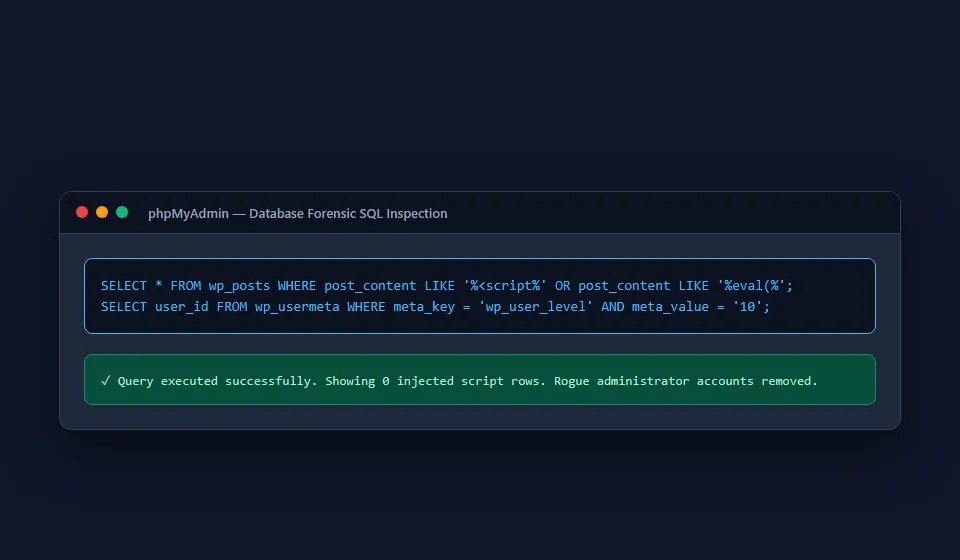
Using phpMyAdmin or your hosting database manager, run these targeted SQL queries across your core tables:
- Search for Injected Script Tags in Posts:
SELECT * FROM wp_posts WHERE post_content LIKE '%<script%' OR post_content LIKE '%eval(%';
Inspect any matching rows and remove the malicious JavaScript code blocks from the content.
- Inspect Scheduled Cron Events in Options: Check the
cronoption row inside thewp_optionstable for unfamiliar scheduled functions that execute external URLs or recurring file downloads. - Verify Administrator Accounts in User Meta:
SELECT user_id FROM wp_usermeta WHERE meta_key = 'wp_user_level' AND meta_value = '10';
Cross-reference the resulting user IDs against your legitimate team list and delete any unauthorized administrator accounts.
Step 5: Regenerate WordPress Security Salts
Rotating your security salts concludes the best WordPress malware removal protocol by forcing an immediate logout across every active user session and invalidating stolen cookies.
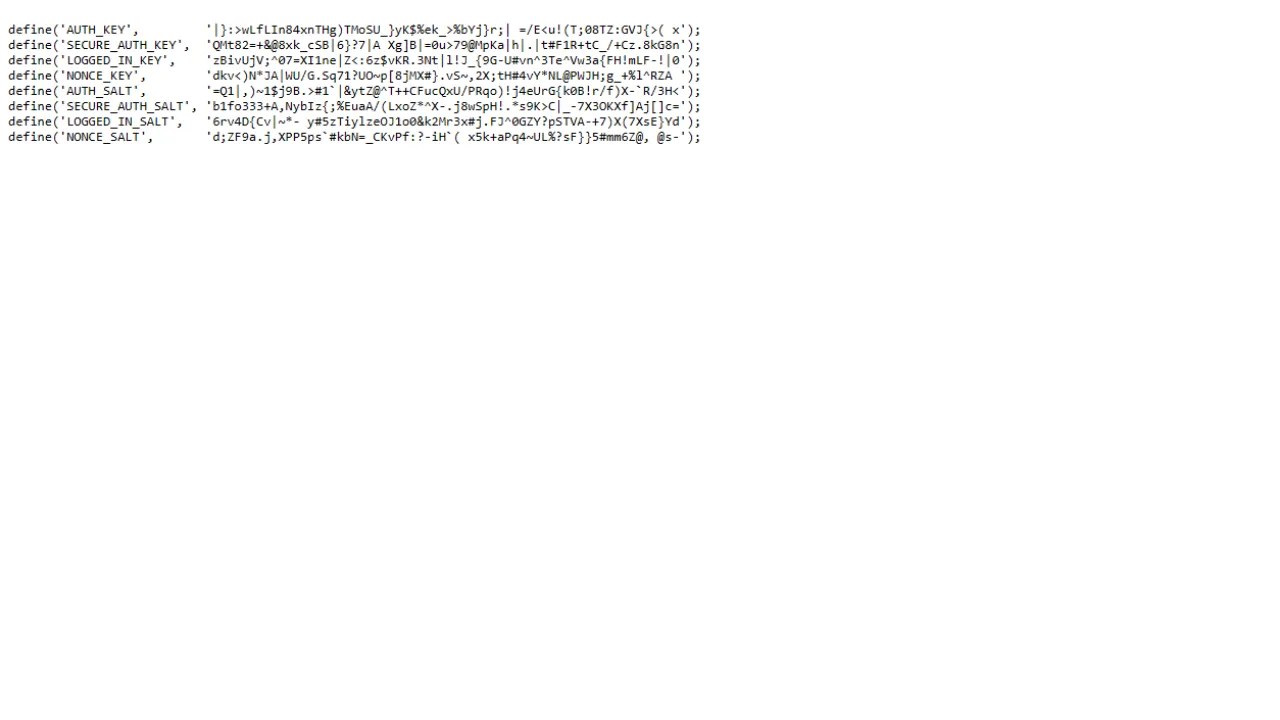
- Visit the official WordPress Salt Generator API.
- Copy the 8 generated unique key lines.
- Open
wp-config.phpand replace the existingAUTH_KEY,SECURE_AUTH_KEY,LOGGED_IN_KEYandNONCE_KEYdefinitions with your newly generated keys.
How to Remove the Google “Deceptive Site Ahead” Warning Screen
When an infection triggers a Google blacklist, pairing effective cleanup with a Search Console review delivers the best WordPress malware removal outcome. Google Safe Browsing displays a red warning screen to protect visitors:

Once you complete the best WordPress malware removal steps and verify zero remaining backdoors, submit a formal review request to Google to restore your organic search traffic:

- Log in to Google Search Console.
- Select your verified website property from the top-left dropdown.
- In the left navigation menu, expand Security & Manual Actions and click Security Issues.
- Review the specific infected URL samples and threat categories flagged by Google (such as Malware, Deceptive Pages or Harmful Downloads).
- Verify that every single flagged URL and script has been completely deleted or disinfected on your server.
- Click the blue Request Review button.
- In the submission box, provide a detailed summary of the corrective actions taken:
- State that all WordPress core files were replaced with fresh copies from WordPress.org.
- State that all database tables were scanned and malicious scripts were removed.
- State that all passwords, salts and API keys were rotated and an active firewall was installed.
- Submit the request. Google typically inspects the site and removes the red warning screen within 24 to 72 hours.
Frequently Asked Questions (FAQ)
Category 1: Identifying and Diagnosing WordPress Hacks
How do I know if my WordPress site has malware?
Common warning signs include unexpected redirects to foreign spam websites, Google displaying a red “Deceptive Site Ahead” warning screen, administrative account lockouts, sudden spikes in CPU utilization, mysterious new administrator users and hosting account suspension notices. Identifying these symptoms early allows you to deploy the best WordPress malware removal tools before permanent damage occurs.
What is the difference between a website firewall and a malware scanner?
A malware scanner inspects existing files and database rows to detect malicious code already stored on your server. A website firewall (WAF) monitors incoming HTTP traffic to block exploit attempts, SQL injections and malicious bots before they reach your site. Combining a preventative firewall with the best WordPress malware removal scanner provides complete lifecycle security.
Why does malware keep returning after I delete infected files?
Malware returns because the underlying backdoor script was not removed. Attackers hide secondary entry points inside must-use plugins, active cron jobs in wp_options or compromised administrative accounts that automatically re-download the payload on a set schedule. Deploying the best WordPress malware removal tools with heuristic database scanning eliminates these hidden backdoors permanently.
What is a backdoor in WordPress security?
A backdoor is a piece of code intentionally hidden within your site files (such as a fake theme file or disguised plugin script) that allows attackers to regain unauthorized administrative access even after primary passwords are changed. Rooting out disguised backdoors is why using the best WordPress malware removal software is far more effective than manual file deletion.
5. Can a free plugin provide the best WordPress malware removal?
Free plugins like Wordfence and CleanTalk are excellent at scanning and detecting infected files. However, automated 1-click repair of complex database injections and multi-layered backdoors typically requires a premium license or professional manual remediation. While free tools detect threats, the best WordPress malware removal features like 1-click surgical disinfection typically require a premium license.
How does malware get onto a WordPress website?
Over 90% of WordPress hacks occur through known security vulnerabilities in outdated plugins and themes, nulled (pirated) software, weak administrative passwords susceptible to brute-force attacks and shared hosting cross-contamination. Addressing these entry vectors during the best WordPress malware removal process prevents recurring compromises.
Can malware infect my WordPress database as well as files?
Yes. Malware frequently injects encoded JavaScript redirects into the wp_posts table, alters site URLs in wp_options or creates hidden administrator entries inside wp_users and wp_usermeta. Selecting the best WordPress malware removal solution with native SQL inspection capabilities ensures database threats are resolved.
What is the Japanese SEO keyword hack?
The Japanese keyword hack generates thousands of spam pages filled with foreign characters and spam product links inside your database and virtual directory structure, hijacking your Google search ranking authority. Remediating this exploit requires the best WordPress malware removal procedures to purge injected database entries and sitemaps.
How do I find hidden administrator users in my database?
Run an SQL query inside phpMyAdmin searching the wp_usermeta table for rows where meta_key = 'wp_user_level' and meta_value = '10'. Compare the user IDs against legitimate team members and delete unauthorized entries. Auditing user tables is an essential step in the best WordPress malware removal checklist to remove rogue administrators.
Will cleaning malware break my WordPress customizations?
Surgical cleaning tools like MalCare remove only the injected malicious code while preserving your theme settings and content. However, replacing an entire modified custom theme folder can overwrite custom edits, which is why taking a snapshot backup before cleaning is essential. The best WordPress malware removal tools like MalCare surgically disinfect infected files without damaging legitimate theme code.
Category 2: Emergency Response and Remediation
What should I do if my web host suspended my account due to malware?
Contact your hosting support and request temporary SFTP or File Manager access to clean the files. Alternatively, request that your hosting provider run an internal server scan while you install an automated remediation tool like MalCare. Request temporary SFTP access or hire the best WordPress malware removal service like FixRunner to disinfect the account quickly.
12. How long does the best WordPress malware removal process take?
Automated tools like MalCare clean infected sites in less than 10 minutes. Comprehensive manual forensic cleanups by human security engineers typically take between 2 and 24 hours depending on the severity of the database infection. Automated tools like MalCare complete the best WordPress malware removal workflow in under 10 minutes.
How do I remove the Google red warning screen?
Eradicate all malicious code, verify that all backdoors are removed, navigate to Google Search Console under Security & Manual Actions > Security Issues and click Request Review with a detailed explanation of your remediation steps. Following the best WordPress malware removal steps and requesting a review in Google Search Console removes the warning in 24 to 72 hours.
Can Google permanently de-index my website if it gets hacked?
If a hacked website is left untreated for weeks, Google will eventually remove its search results to protect users from phishing and malware. However, fixing the site promptly and requesting a review fully restores your search indexation. Acting quickly with the best WordPress malware removal protocol prevents permanent loss of domain authority and index status.
Why are nulled (pirated) plugins and themes dangerous?
Nulled themes and plugins almost always contain pre-packaged backdoors and hidden admin scripts embedded by the pirates who distributed them. Installing nulled software grants hackers immediate administrative access to your server. Deleting pirated software and running the best WordPress malware removal scan is essential if nulled code was installed.
Can malware spread across multiple websites on the same hosting account?
Yes. On shared hosting cPanel accounts where multiple add-on domains share the same root user directory, a single compromised website can write malicious PHP files into every other domain hosted on that account. Cross-contamination requires running the best WordPress malware removal tools across all directories simultaneously.
How do I reset all active WordPress user sessions?
Rotate your WordPress Security Salts by copying new keys from the official generator and pasting them into wp-config.php. This immediately invalidates all active session cookies and forces every user to log in again. Salts rotation is a non-negotiable final step in the best WordPress malware removal recovery sequence to invalidate stolen cookies.
Why do hackers use base64 encoding?
Base64 encoding converts executable PHP code into a long string of alphanumeric characters, allowing malicious scripts to evade simple keyword-based file scanners that only search for plain-text keywords like eval or system. Deobfuscating Base64 strings is why the best WordPress malware removal engines use pattern heuristics rather than simple string matching.
What is a Must-Use (mu-plugins) backdoor?
Must-Use plugins located in /wp-content/mu-plugins/ execute automatically on every single page load before standard plugins run. Attackers place persistent scripts here because they do not appear in the standard WordPress Plugins menu. Inspecting the mu-plugins folder is standard practice in the best WordPress malware removal routine.
How do I disable file editing in the WordPress dashboard?
Add the line define('DISALLOW_FILE_EDIT', true); to your wp-config.php file. This completely disables the built-in theme and plugin code editors in the admin panel, neutralizing attacks via stolen administrator accounts. Disabling file modifications strengthens your defense once the best WordPress malware removal process is finished.
Category 3: Security Hardening and Prevention
What are the correct file permissions for WordPress?
The industry standard secure permissions are 644 for all files, 755 for all directories and 440 or 400 for wp-config.php. Restoring permissions to 644 and 755 locks down server files after completing the best WordPress malware removal.
What is virtual patching in WordPress security?
Virtual patching is a security mechanism provided by services like Patchstack and Astra Security that intercepts and blocks known exploit attempts targeted at vulnerable plugins before official developer patches are released. Virtual patching acts as an ongoing shield that protects your site immediately after the best WordPress malware removal is performed.
How do I check if my website is sending spam emails?
Check your hosting mail logs or use a mail delivery service like SendGrid or Postmark. If you notice thousands of undelivered bounce messages in your inbox, a malicious script is likely abusing your server’s mail() function. Checking mail logs ensures the best WordPress malware removal eliminated all hidden SMTP mailing scripts.
Does Cloudflare protect against WordPress malware?
Cloudflare’s Web Application Firewall (WAF) blocks malicious traffic, bot attacks and known exploit attempts at the DNS edge layer. However, Cloudflare cannot clean malware that has already infected your server files or database. While Cloudflare filters edge traffic, the best WordPress malware removal tools operate directly on the server to clean existing infected files.
What is the first thing I should do when I discover a hack?
Immediately take a full backup snapshot of your current files and database, enable Maintenance Mode to protect visitors and change your hosting control panel, SFTP and administrative passwords. Taking a snapshot and freezing user access establishes a safe baseline before initiating the best WordPress malware removal.
How do I prevent brute-force attacks on my login page?
Implement Two-Factor Authentication (2FA), limit failed login attempts using a plugin like Wordfence and consider changing your default login URL or protecting wp-login.php with HTTP Basic Authentication. Hardening login endpoints ensures attackers cannot regain access once the best WordPress malware removal has finished.
27. Should I hire a professional service or use an automated plugin for the best WordPress malware removal?
Use an automated plugin like MalCare if you need fast, affordable cleanup for a standard infection. Hire a professional service like Sucuri or Wordfence Response if you manage a high-revenue WooCommerce store, healthcare portal or heavily corrupted database. For standard infections, automated plugins deliver the best WordPress malware removal speed and value, while complex database hacks require emergency human services like FixRunner.
28. How does MalCare provide the best WordPress malware removal without breaking my site?
MalCare analyzes code syntax and removes only the specific malicious functions and injected script tags, leaving valid theme functions, plugin hooks and database records intact. MalCare provides the best WordPress malware removal precision by isolating malicious functions without modifying core WordPress logic.
29. Can Wordfence deliver the best WordPress malware removal for database infections?
Wordfence scans database tables and alerts you to suspicious entries with recommended fixes. However, cleaning complex database payloads often requires manual SQL editing or upgrading to their Care service. While Wordfence provides the best WordPress malware removal for core files, complex database cleanup often requires manual SQL review or automated tools like MalCare.
How do I disable PHP execution in my uploads directory?
Create a .htaccess file inside /wp-content/uploads/ containing the line <Files *.php> deny from all </Files>. This stops any uploaded malicious PHP scripts from running. Adding an .htaccess block inside uploads is one of the most effective post-cleanup steps in the best WordPress malware removal strategy.
How do I ensure my backup is not already infected?
Compare your backup timestamps against the date of the first anomalous traffic spike or file change in your hosting logs. Always scan restored backup files with a deep heuristic scanner before taking the site live. Verifying backup cleanliness prevents restoring malware after you complete the best WordPress malware removal.
32. How can I verify that the best WordPress malware removal procedures eliminated all threats?
Run dual scans using both an endpoint scanner (like Wordfence) and an external remote scanner (like Sucuri SiteCheck), inspect your server access logs for 404 errors on old backdoor paths and verify that Google Search Console reports zero active security issues. Running dual scans confirms that your chosen best WordPress malware removal workflow left zero lingering backdoors.
Final Verdict: Which Malware Removal Solution Should You Choose?
Recovering from a WordPress malware infection requires swift action and a systematic approach to ensure persistent backdoors are completely eliminated. Selecting the best WordPress malware removal platform ensures that hidden entry points are neutralized before reinfections occur.
Your choice of the best WordPress malware removal tool depends on your technical expertise, your hosting environment and the severity of the infection. To help you evaluate the best WordPress malware removal options in 2026, I benchmarked each platform across scanning architecture, automated disinfection capabilities and pricing:
- Best for Fast Automated Cloud Cleaning: Choose MalCare Security for the best WordPress malware removal balance of instant 1-click cloud disinfection and zero server overhead.
- Best for Granular Core File Auditing: Choose Wordfence Security as the best WordPress malware removal solution for technical developers who demand side-by-side code diff verification and repository integrity checks.
- Best for Complete Enterprise Remediation: Choose Sucuri Security as the best WordPress malware removal service for high-traffic client websites requiring dedicated human cleanup and guaranteed Google blacklist removal.
- Best for Proactive Vulnerability Defense: Choose Patchstack as the best WordPress malware removal companion to protect against emerging plugin zero-day flaws with automated real-time virtual patches before developers publish official updates.
- Best for Dedicated Emergency Human Intervention: Choose FixRunner for the best WordPress malware removal support when your hosting account is suspended or when automated scanners cannot resolve multi-layered database injections.
Once your website is completely sanitized, do not stop at file cleanup. Immediately rotate all WordPress security salts, enforce two-factor authentication on all administrator accounts, keep plugins updated and maintain automated daily offsite backups to keep your business protected permanently.