
To understand how to optimize JavaScript effectively, start by deferring non-critical scripts (defer or async), minifying and compressing .js payloads with Brotli, splitting large bundles by route and delaying third-party scripts until user interaction. Applying these JavaScript optimizations eliminates render-blocking requests, frees up the browser’s main thread and improves Core Web Vitals like Interaction to Next Paint (INP).
TL;DR: Key Takeaways for Fast JavaScript Execution
|
Whether you are a full-stack developer refactoring a client’s bundle, an SEO specialist diagnosing failing Core Web Vitals or a WordPress site owner trying to fix PageSpeed Insights warnings without touching code, knowing how to optimize JavaScript is essential when unoptimized scripts hold your site back.
On my own site (alsuza.com), running WordPress with Astra and Elementor means managing multiple frontend scripts ranging from layout observers and form handlers to analytics beacons. Without disciplined JavaScript files optimization, even a lightweight page can stall on mobile CPUs while the browser parses, compiles and executes hundreds of kilobytes of script.
In this guide, I will answer the common question of what JavaScript files do, break down 18 actionable JavaScript optimization tips across code, network delivery and browser runtime and walk you step-by-step through how to optimize JavaScript in WordPress without writing code.
What Are JavaScript Files?
Before exploring how to optimize JavaScript, it helps to clarify what are JavaScript files and how browsers process them. JavaScript files are plain-text source code files saved with a .js extension (or .mjs for ES modules) that instruct a web browser how to create dynamic, interactive page behavior. While HTML defines your page structure and CSS controls visual styling, JavaScript files handle logic such as validating forms, updating the Document Object Model (DOM), fetching data via fetch() or AJAX requests and running interactive UI components.
When a visitor opens your webpage, the browser downloads linked .js files, parses the text into an Abstract Syntax Tree (AST), compiles it into bytecode via the browser engine (such as Chrome’s V8 or Safari’s JavaScriptCore) and executes it on the main thread. Understanding what are JavaScript files doing on the main thread is the foundation of every speed audit.
What Is JavaScript Files Optimization?
JavaScript files optimization is the engineering process of reducing the file size, network transfer time, parse cost and main-thread execution time of the JavaScript code running on a website.
Unlike images (which only consume network bandwidth and decoding memory), every kilobyte of JavaScript taxes the user’s device twice: once over the network during download and a second time on the CPU during parsing, compilation and execution. Optimizing JavaScript code (and optimizing JavaScript delivery across the network) combines build-time techniques (minification, tree-shaking and code splitting), transport improvements (Brotli compression, HTTP/2 or HTTP/3 multiplexing and CDN caching) and browser scheduling (defer, async, Speculation Rules and interaction-based script delay). When teams ask how to optimize JavaScript for modern web apps, they are really asking how to balance these three layers of JavaScript files optimization.
Why Optimizing JavaScript Matters for SEO and Core Web Vitals
When a browser encounters a standard <script src=”app.js”></script> tag in your HTML <head>, it halts HTML parsing entirely until that script finishes downloading and executing. Worse, because the browser’s main thread handles HTML rendering, CSS layout and JavaScript execution on a single queue, any script task taking longer than 50 milliseconds is classified by W3C and Chrome DevTools as a Long Task. Long Tasks freeze the page so clicks, taps and keystrokes cannot register, which is why optimizing JavaScript is critical for user experience.
According to Google’s Core Web Vitals documentation on web.dev, a “Good” Interaction to Next Paint (INP) score requires pages to respond to user interactions in 200 milliseconds or less at the 75th percentile of page loads. Similarly, Largest Contentful Paint (LCP) must occur within 2.5 seconds. Learning how to optimize JavaScript directly targets both metrics.
When you systematically apply JavaScript optimizations, you unlock seven measurable benefits:
• Faster Page Load Times (LCP): Eliminating render-blocking .js files in the document <head> through JavaScript files optimization lets the browser paint hero text and images hundreds of milliseconds earlier.
• Better Search Engine Rankings & Crawl Efficiency: Passing Core Web Vitals (LCP ≤ 2.5s, INP ≤ 200ms and CLS ≤ 0.1) strengthens Google page experience signals while optimizing JavaScript code reduces rendering bottlenecks when Googlebot’s Web Rendering Service (WRS) crawls your pages.
• Improved Responsiveness (Lower INP): Breaking up long JavaScript tasks ensures dropdown menus, accordions and “Add to Cart” buttons respond immediately when tapped on mid-range mobile devices.
• Lower Bounce Rates: Google’s mobile speed benchmark research found that as page load time increases from 1 second to 3 seconds, the probability of a mobile visitor bouncing increases by 32% and jumps to 90% at 5 seconds.
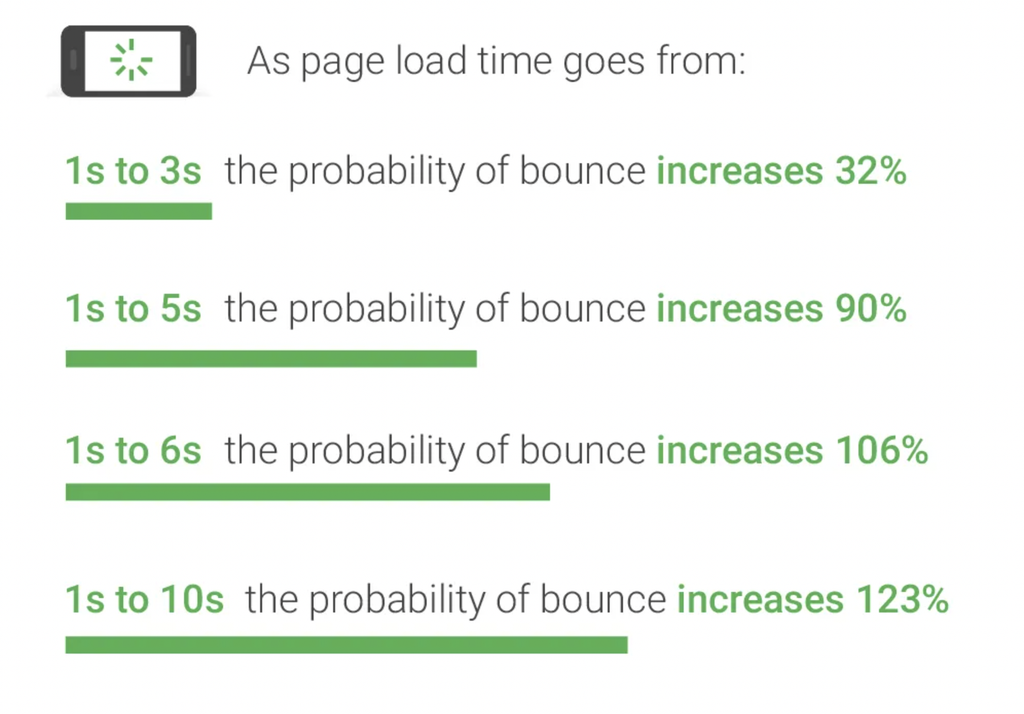
Image source: Google Mobile Page Speed Benchmarks showing how page load delays impact mobile bounce probability.
• Higher Conversion Rates: A study by Deloitte Digital and Google (Milliseconds Make Millions, 2020) measured that a 0.1-second (100 ms) improvement in mobile site speed increased retail conversions by 8.4% and average order value by 9.2%.
• Reduced Device CPU & Battery Drain: Removing dead code and memory leaks when optimizing JavaScript prevents mobile browsers from throttling performance or crashing tabs on low-memory smartphones.
• Reduced Bandwidth Usage and Server Costs: Minifying scripts and serving them via Brotli compression on an edge CDN shrinks payload transfer sizes by 60% to 80%, lowering egress bills.
How to Optimize JavaScript: 18 JavaScript Optimization Tips
To make these JavaScript optimization tips practical, I have organized all 18 techniques in order of real-world impact. If you want to master how to optimize JavaScript from end to end, start with how scripts load in the browser, move into optimizing JavaScript code and bundle cleanup and finish with runtime and server configuration.
Part A: Delivery & Loading Optimizations (Tips 1–5)
Even the cleanest code will slow down your site if the browser downloads and runs it at the wrong moment. These first five delivery techniques control how and when your scripts load so your visual content renders first without parser delays.
1. Eliminate Render-Blocking JavaScript Assets
When the HTML parser hits a synchronous <script> tag inside <head>, it stops building the DOM until the script is fetched and executed. The first rule in how to optimize JavaScript for fast initial paint is to move legacy scripts to the bottom of <body> or keep them in <head> with the defer or type=”module” attribute so the browser downloads them in parallel without blocking the first paint.
2. Use the async and defer Attributes Correctly
Adding defer or async is one of the highest-impact JavaScript optimizations because it prevents external scripts from blocking HTML parsing:
• defer: Downloads the file in parallel while HTML parses and executes it only after the DOM is fully constructed, preserving the exact order in which scripts appear in the document. Use defer for 90% of your site’s interactive scripts.
• async: Downloads in parallel and executes immediately the moment the download finishes, pausing the HTML parser and ignoring script order. Use async strictly for independent, order-agnostic scripts that need early data collection.
| HTML<!– Best for core site scripts that depend on the DOM or each other –><script defer src=”/assets/js/vendor.min.js”></script><script defer src=”/assets/js/app.min.js”></script> <!– Best for independent scripts that do not touch the DOM –><script async src=”https://example-analytics.com/beacon.js”></script> |
3. Delay Third-Party Scripts Until User Interaction
Third-party scripts such as live chat widgets (Intercom and Crisp), heatmaps (Hotjar and Clarity), social embeds and marketing pixels often account for over half of a site’s main-thread blocking time. When clients ask me how to optimize JavaScript on marketing-heavy websites, delaying third-party trackers is always step one. Instead of firing them on initial load, attach a lightweight one-time event listener (mouseover, touchstart, keydown or scroll) that injects those <script> tags only after the visitor actually interacts with the page.
4. Use Code Splitting and Dynamic import() (Route-Based Chunking)
Shipping a single monolithic bundle.js forces visitors on your homepage to download JavaScript meant only for your checkout page or account dashboard. A core part of JavaScript files optimization is using modern bundlers like Vite, Webpack or esbuild alongside native ECMAScript dynamic import() to split code by route or component:
| JAVASCRIPT// Load the heavy chart library only when the user clicks “View Analytics”document.querySelector(‘#open-chart-btn’).addEventListener(‘click’, async () => { const { renderChart } = await import(‘./components/analytics-chart.js’); renderChart();}); |
5. Preload Critical Scripts & Use Speculation Rules
If a script is genuinely required for above-the-fold interactivity, hint the browser early using <link rel=”preload” as=”script” href=”/critical.js”>. For instant multi-page navigation, add the modern Speculation Rules API (which I run on alsuza.com) as part of your JavaScript optimizations so the browser prefetches or prerenders the next likely page in the background during idle time:
| HTML<script type=”speculationrules”>{ “prefetch”: [{ “source”: “document”, “where”: { “href_matches”: “/*” }, “eagerness”: “conservative” }]}</script> |
Part B: Optimizing JavaScript Code & Bundle Size (Tips 6–11)
Once your script loading order is under control, the next step is shrinking the actual payload size sent over the network. The following six techniques strip out dead code, redundant library weight and unnecessary script bloat before files ever reach the browser.
6. Audit and Remove Unused JavaScript Code
Open Chrome DevTools, press Ctrl+Shift+P (Cmd+Shift+P on macOS) and type Show Coverage. Reload your page and inspect the red bars next to each .js file. Those red percentages show exact bytes downloaded and parsed that were never executed on the page. Removing dead functions, legacy polyfills for dead browsers (like IE11) and deactivated plugin scripts is essential when optimizing JavaScript code.
7. Tree-Shake and Exclude Unused Library Components
Importing an entire utility or UI library (such as full Lodash, Moment.js or jQuery UI) just to use one date formatter or slider adds tens of kilobytes of dead weight. Among all JavaScript optimization tips for modern bundlers, switching to ES module named imports (import { debounce } from ‘lodash-es’) is the cleanest way to let your bundler tree-shake (statically remove) unreferenced exports. You can also replace heavy legacy libraries with native Web APIs like Intl.DateTimeFormat and fetch() while optimizing JavaScript bundles.
8. Minify JavaScript Files (Without Reckless Concatenation)
Minification strips whitespace, comments, newline characters and long local variable names using tools like Terser, SWC or esbuild, shrinking raw .js size by 20% to 40%.
Important 2026 caveat on concatenation: In the HTTP/1.1 era, combining (concatenating) 20 small .js files into one giant file was mandatory to avoid the 6-connection browser limit. Today, if you want to know how to optimize JavaScript on servers running HTTP/2 or HTTP/3, remember that concatenating all scripts into one mega-file often hurts performance because changing a single line of code invalidates the browser cache for the entire bundle. Proper JavaScript files optimization means minifying every file and grouping scripts into logical small chunks rather than one giant combined file.
9. Replace JavaScript with Modern CSS & HTML Where Possible
One of the smartest JavaScript optimization tips is writing less JavaScript in the first place. Every animation or UI state you handle in CSS runs on the browser’s compositor thread instead of blocking the JavaScript main thread. In 2026, native HTML and CSS replace dozens of common scripts:
• Use native <details> and <summary> tags instead of JavaScript accordion libraries.
• Use the native HTML popover API and <dialog> element instead of heavy modal scripts.
• Use CSS scroll-snap-type for carousels and @keyframes / transition on transform and opacity instead of JS-driven animation loops.
10. Use Native Browser Lazy Loading and IntersectionObserver
Never run scroll-event listeners (window.addEventListener(‘scroll’, …)) that fire 60 times per second to check if images or components are in the viewport.
• For images and iframes, use native HTML loading=”lazy” and fetchpriority=”low”.
• For lazy-initializing JavaScript components (such as comment sections, maps or Elementor background containers), optimizing JavaScript code with the browser’s native IntersectionObserver API ensures your script runs asynchronously only when the target element enters the viewport.
| JAVASCRIPTconst observer = new IntersectionObserver((entries, obs) => { entries.forEach((entry) => { if (entry.isIntersecting) { initHeavyComponent(entry.target); obs.unobserve(entry.target); } });}, { rootMargin: ‘200px 0px’ }); document.querySelectorAll(‘.js-lazy-widget’).forEach((el) => observer.observe(el)); |
11. Avoid Heavy JavaScript Obfuscation in Production
While minification shortens identifiers (function calculateTotal(price) to function a(b)), heavy security obfuscation transforms simple logic into deeply nested string arrays, eval() wrappers and control-flow flattening. This bloats file size by 30% to 200% and prevents the V8 JIT compiler from optimizing hot functions, spiking CPU parse time by 2× to 5×. When learning how to optimize JavaScript for production, protect sensitive business logic by keeping it on the server API rather than obfuscating client-side JavaScript.
Part C: Runtime & Main-Thread Optimizations (Tips 12–15)
Fast downloads only solve half of the performance puzzle because heavy script execution can still freeze the page after it loads. These four runtime techniques keep the browser main thread free so clicks, taps and scrolling stay instant.
12. Prevent JavaScript Memory Leaks
A memory leak occurs when allocated objects are no longer needed by your application yet remain reachable from the root scope, preventing the browser’s Garbage Collector from reclaiming RAM. Over a multi-minute session, leaked memory slows down frame rates and crashes mobile tabs. When optimizing JavaScript code for single-page apps or dynamic dashboards, prevent leaks by following four rules:
1. Always call removeEventListener() when unmounting components.
2. Clear intervals and timeouts (clearInterval() and clearTimeout()).
3. Avoid accidental global variables (window.myCache = …) by enabling “use strict” or ES modules.
4. Nullify JavaScript variables that hold references to detached DOM nodes.
13. Cache DOM Queries and Eliminate Layout Thrashing
Querying the DOM repeatedly inside a loop or alternating between reading geometric properties (element.offsetHeight or getBoundingClientRect()) and writing styles (element.style.height = …) forces the browser to recalculate page layout synchronously on every iteration. This bottleneck is called forced synchronous layout (layout thrashing). A key technique in how to optimize JavaScript loops is caching your DOM references outside loops and batching DOM insertions using DocumentFragment:
| JAVASCRIPT// Slow: queries DOM and triggers reflow on every loop iterationfor (let i = 0; i < items.length; i++) { document.getElementById(‘list’).innerHTML += `<li>${items[i]}</li>`;} // Fast: caches reference and updates the DOM in a single batch paintconst listEl = document.getElementById(‘list’);const fragment = document.createDocumentFragment();for (const item of items) { const li = document.createElement(‘li’); li.textContent = item; fragment.appendChild(li);}listEl.appendChild(fragment); |
14. Yield to the Main Thread & Offload Heavy Work to Web Workers
To keep Interaction to Next Paint (INP) under 200 ms, no single JavaScript task should monopolize the main thread for more than 50 ms. These runtime JavaScript optimizations keep interfaces responsive:
• Yielding: If you must process a large array on the main thread, yield control back to the browser between chunks using await scheduler.yield() (or a setTimeout(resolve, 0) fallback) so pending user clicks can paint immediately.
• Web Workers: For CPU-intensive tasks like client-side search indexing, cryptography, CSV parsing or image resizing, spawn a Web Worker (new Worker(‘worker.js’)) to run the code on a separate background OS thread without touching UI responsiveness.
15. Profile Code Execution with Modern Performance Tools
Never guess which script is slowing down your page. Retire legacy tools from a decade ago (such as YSlow) and measure real execution bottlenecks while optimizing JavaScript using:
• Chrome DevTools Performance Panel: Record a page load or click interaction to inspect the Main Thread Flame Chart, spot red triangles marking Long Tasks (>50 ms) and check Total Blocking Time (TBT).
• Performance API (performance.mark() & performance.measure()): Instrument high-precision sub-millisecond timing directly when optimizing JavaScript code.
• Google PageSpeed Insights & CrUX: Compare lab Lighthouse data (Total Blocking Time) against 28-day real-user field telemetry (INP and LCP).
Part D: Server & Network Optimizations (Tips 16–18)
Finally, your server and CDN configuration determine how quickly optimized script files travel across the network to your visitor’s device. These last three infrastructure upgrades cut network latency and cache files at the edge for near-instant repeat visits.
16. Serve Scripts Over HTTP/2 and HTTP/3 (QUIC)
HTTP/1.1 forced browsers to open multiple TCP connections just to download a handful of scripts in parallel. HTTP/2 introduced multiplexed streams over a single connection with header compression while HTTP/3 (over QUIC/UDP) eliminates TCP head-of-line packet blocking on lossy mobile networks. Verifying that your origin server or reverse proxy (such as Cloudflare or Nginx) has both HTTP/2 and HTTP/3 enabled is a foundational step in JavaScript files optimization.
17. Enable Brotli (br) and GZIP Compression
Before sending .js files over the wire, compress them on the server. While GZIP remains a universal baseline fallback, Brotli (Content-Encoding: br) is supported by over 97% of modern browsers and compresses JavaScript files 14% to 21% smaller than GZIP. Pre-compressing static .js bundles at build time (brotli -q 11) is one of the easiest server-side JavaScript optimization tips so your server delivers maximum compression with zero CPU overhead.
18. Reduce External DNS Lookups, Host Key Scripts Locally and Cache via CDN
Every external domain your page fetches scripts from (cdn.jsdelivr.net, www.googletagmanager.com or connect.facebook.net) requires a separate DNS lookup, TCP handshake and TLS negotiation, adding 100 ms to 300 ms of latency on mobile connections. To finish learning how to optimize JavaScript delivery across the network:
• Host critical libraries locally on your own domain or primary CDN so they share your already-warm HTTP/2 or HTTP/3 connection.
• For unavoidable third-party origins, add <link rel=”dns-prefetch” href=”//example.com”> or <link rel=”preconnect” href=”https://example.com” crossorigin> in your <head>.
• Set long-lived immutable browser caching headers (Cache-Control: public, max-age=31536000, immutable) on fingerprinted filenames (app.8f9d2a.js) served through an edge CDN so repeat visitors load JavaScript in 0 ms from local disk cache.
Decision Matrix: async vs. defer vs. Delay JS
Use this quick reference table to choose the right loading method when deciding how to optimize JavaScript files on your site:
| Loading Method | HTML Example | Blocks HTML Parser? | Preserves Execution Order? | Best Used For |
| Default (Synchronous) | <script src=”app.js”></script> | Yes (Downloads + Executes) | Yes | Almost never: only tiny inline config variables needed before first paint |
| async | <script async src=”app.js”></script> | Only during execution | No (Executes as soon as downloaded) | Independent scripts that need early data collection and have zero dependencies |
| defer | <script defer src=”app.js”></script> | No (Executes after HTML parse) | Yes | Core site UI scripts, framework bundles, jQuery plugins and navigation menus |
| ES Module (type=”module”) | <script type=”module” src=”app.mjs”></script> | No (Behaves like defer by default) | Yes | Modern modular JavaScript bundles with import/export syntax |
| Delay Until Interaction | Managed via JS loader / WP plugin | No (Zero load until user acts) | Yes (When triggered) | Live chat widgets, ad tags, heatmaps, social feeds, comment systems and heavy trackers |
How to Optimize JavaScript Files in WordPress (Step-by-Step)
If you run a WordPress site and do not want to edit functions.php or configure Webpack manually, you can implement the most impactful JavaScript files optimization techniques in minutes using a performance plugin like WP Rocket (which I use on alsuza.com), Perfmatters or LiteSpeed Cache.
Here is the exact 4-step setup showing how to optimize JavaScript in WordPress using WP Rocket:
Step 1: Install, Activate and Run a Baseline Speed Test
Before applying any JavaScript optimizations, run your URL through Google PageSpeed Insights and record your baseline Mobile INP, LCP and Total Blocking Time (TBT) scores.
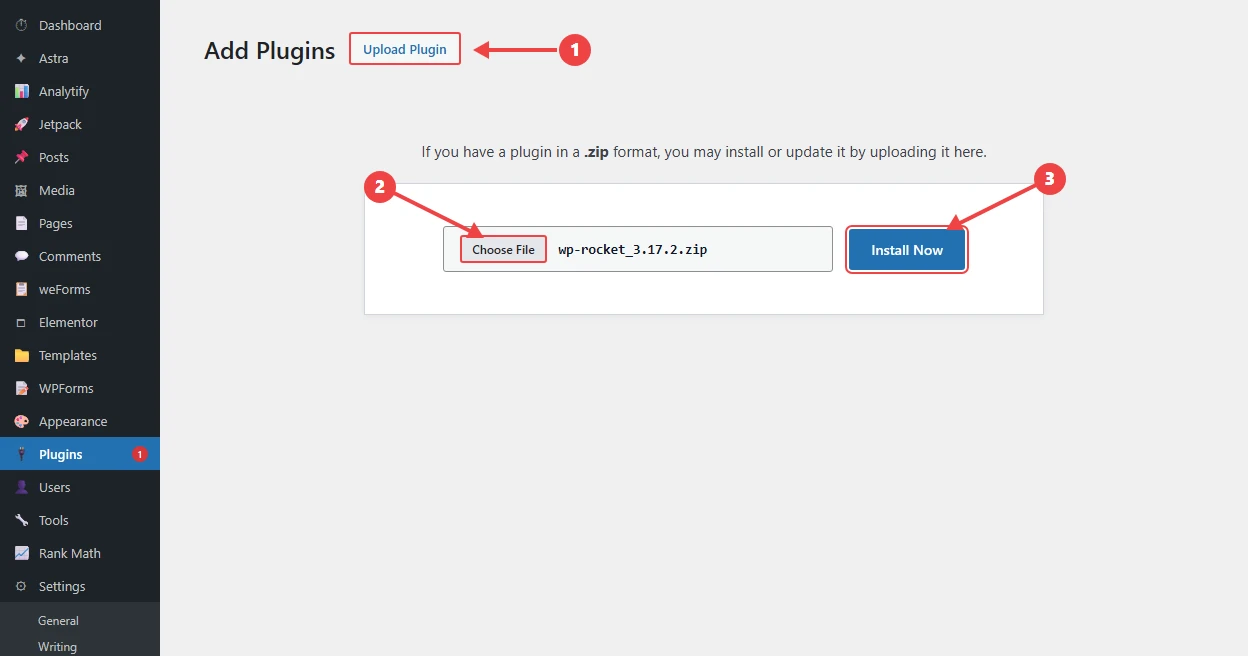
Next, download the WP Rocket .zip package from your account, log in to your WordPress admin dashboard, navigate to Plugins → Add New → Upload Plugin → Choose File (wp-rocket.zip). Then, hit the Install Now button.
Finally click on the Activate Plugin button.
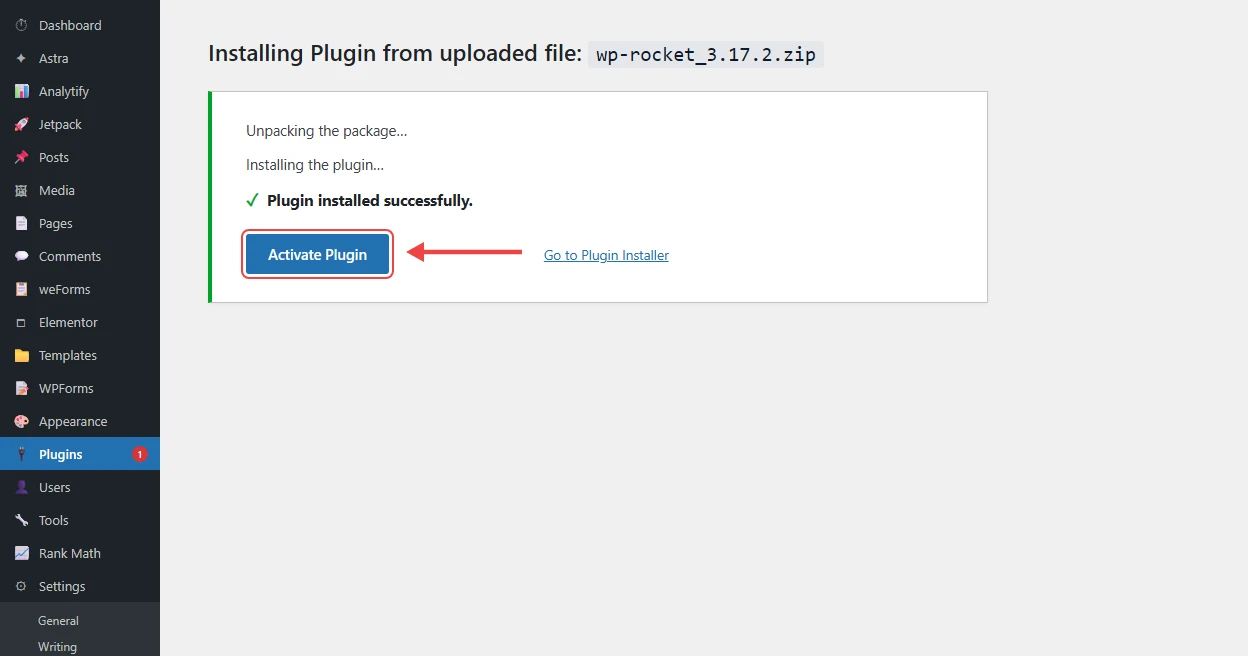
Immediately upon activation, WP Rocket turns on page caching, GZIP/Brotli rules and browser caching headers out of the box.
Step 2: Enable JavaScript Minification, Deferred Loading and Delay JS
In your WordPress sidebar, navigate to Settings → WP Rocket and click the File Optimization tab. Scroll down to the JavaScript Files section and configure these checkboxes for complete JavaScript files optimization:
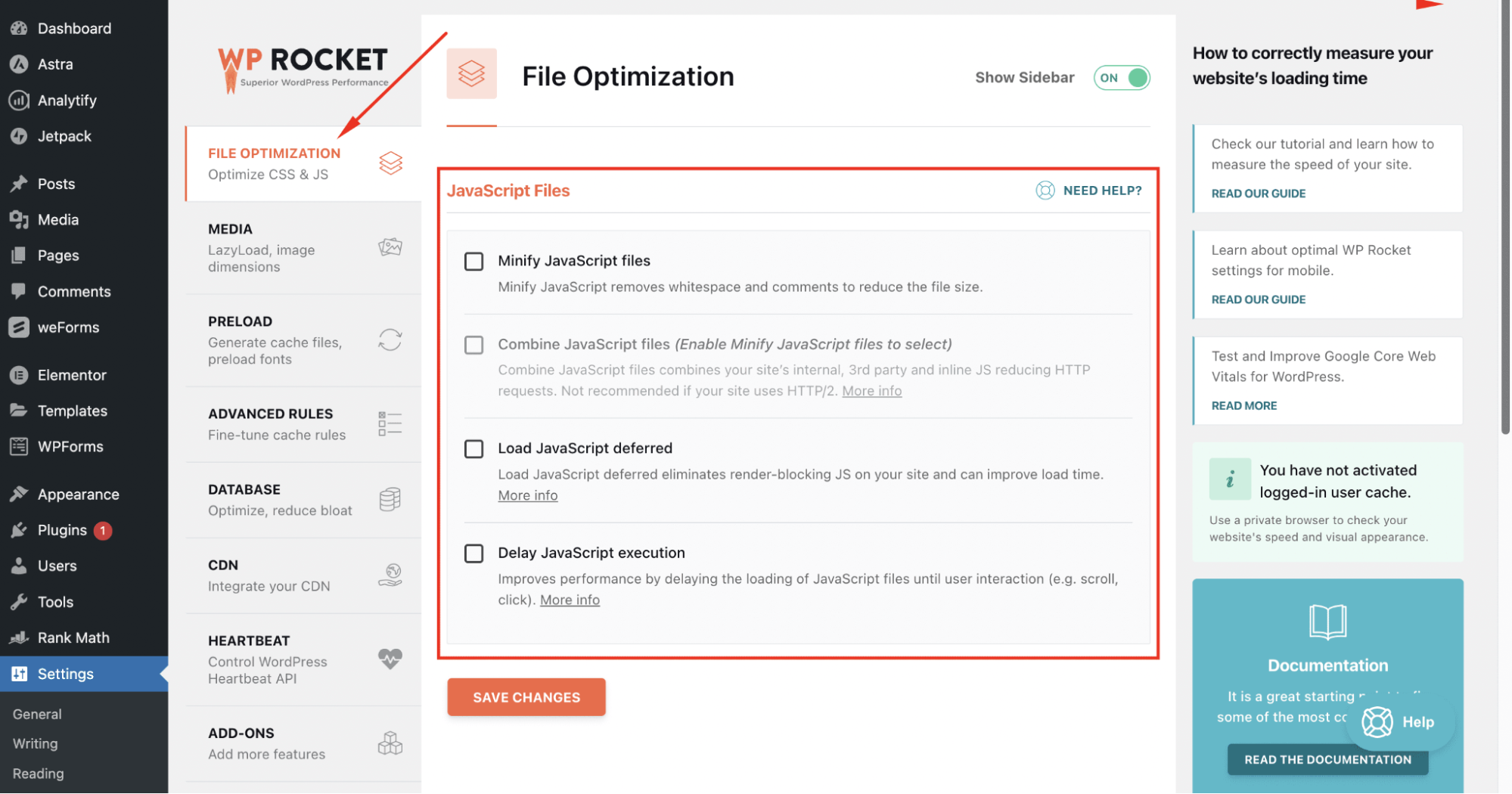
Screenshot: Navigating to Settings → WP Rocket → File Optimization in the WordPress dashboard to configure how to optimize JavaScript settings.
1. Minify JavaScript files: Check this box to strip comments and whitespace from your theme and plugin .js files.
2. Combine JavaScript files: Leave this UNCHECKED if your host uses HTTP/2 or HTTP/3 (most modern hosts do). Combining all scripts into one file on an HTTP/2 server often lowers PageSpeed scores and interferes with delaying individual scripts.
3. Load JavaScript deferred: Check this box to add the defer attribute across your site’s scripts, eliminating render-blocking warnings. Ensure “Safe Mode for jQuery” or requisite exclusions remain active if an older plugin uses inline jQuery(…) calls.
4. Delay JavaScript execution: Check this box for the single largest PageSpeed and INP boost when optimizing JavaScript in WordPress. This delays non-critical scripts until the user moves their mouse, scrolls or taps the screen. If your mobile navigation menu or hero slider requires JavaScript immediately on load, add its script handle or path (for example, /themes/astra/assets/js/minified/frontend.min.js) to the Excluded JavaScript Files box so it stays responsive on first paint.
Step 3: Enable Native LazyLoad for Media and Iframes
Still inside Settings → WP Rocket, click the Media tab:
1. Check Enable for images to apply native lazy loading so off-screen images do not compete with critical JavaScript for early bandwidth.
2. Check Enable for iframes and videos and check Replace YouTube iframe with preview image. A single embedded YouTube player loads over 800 KB of external JavaScript before the visitor even clicks play. Replacing it with a lightweight static thumbnail is one of the smartest WordPress JavaScript optimization tips because it eliminates that entire script payload on initial load.
Step 4: Configure Preloading, DNS Prefetch and CDN Delivery
1. Click the Preload tab and enable Activate Preloading and Enable Link Preloading (which prefetches a page’s HTML the moment a user hovers over or touches a link for 100 ms).
2. Under Preload → Prefetch DNS Requests, paste any external third-party domains that must load early (such as //fonts.googleapis.com or //www.googletagmanager.com), one per line.
3. If you serve a global audience, open the CDN tab (or route your DNS through Cloudflare) to serve static .js and .css files from the edge server closest to each visitor.
4. Save your changes, clear the cache and test your key templates (Homepage, Blog Post, Contact Form and Checkout) in an Incognito window while inspecting the browser Console (F12 → Console) to confirm zero Uncaught ReferenceError warnings.
Pre-Publish JavaScript Audit Checklist
Before you wrap up your workflow for how to optimize JavaScript, run through this 7-point verification checklist:
Zero Render-Blocking .js in <head>: All <script> tags in the document head include defer, async or type=”module”.
Unused JS Reduced Below 20%: Chrome DevTools Coverage tab confirms that optimizing JavaScript code removed dead libraries and unused components.
Third-Party Scripts Delayed: Chat widgets, remarketing pixels and YouTube embeds only initialize after user interaction (touchstart, mouseover or click).
Main-Thread Long Tasks Cleared: Chrome DevTools Performance trace shows Total Blocking Time (TBT) under 200 ms and field INP at or below 200 ms.
Brotli/GZIP Active: Network tab in DevTools confirms .js responses include content-encoding: br (or gzip).
Immutable Cache Headers Set: Static .js assets return cache-control: public, max-age=31536000.
Interactive Functionality Verified: Mobile hamburger menu, forms, sliders and analytics events fire without console errors in an uncached Incognito session.
Frequently Asked Questions (FAQs)
1. What are JavaScript files?
When beginners ask what are JavaScript files, the simplest answer is that .js (or .mjs) files are plain-text scripts containing executable code (such as functions, event listeners and API calls) that make web pages interactive. Browsers download, parse, compile and execute JavaScript files to update HTML/CSS dynamically, validate forms, animate interfaces and exchange data with servers without reloading the page.
2. What is JavaScript files optimization?
JavaScript files optimization is the practice of minimizing the download size, network latency and CPU execution time of website scripts. It includes minifying code, tree-shaking unused libraries, splitting bundles by page route, compressing files with Brotli and deferring or delaying non-critical scripts so pages render and respond faster.
3. How do I optimize JavaScript for Core Web Vitals (INP and LCP)?
If you are wondering how to optimize JavaScript for Largest Contentful Paint (LCP), eliminate render-blocking scripts in <head> using defer so the hero element paints immediately. To pass Interaction to Next Paint (INP ≤ 200 ms), delay third-party scripts until user interaction, break up Long Tasks (>50 ms) with scheduler.yield() and remove unused event listeners.
4. What is the difference between async and defer in JavaScript?
Both async and defer download external scripts in the background without blocking HTML parsing. However, async executes the script immediately once downloaded (pausing HTML parsing and ignoring script order), whereas defer waits until HTML parsing completes and executes scripts in their exact document order before DOMContentLoaded.
5. Should I combine (concatenate) JavaScript files in WordPress?
No, on modern servers running HTTP/2 or HTTP/3, combining all JavaScript files into one giant bundle is usually counterproductive when optimizing JavaScript. HTTP/2 multiplexes multiple small files simultaneously over one connection, whereas a single combined mega-bundle blocks the main thread longer and invalidates the entire browser cache whenever one plugin updates.
6. How do I fix “Eliminate render-blocking resources” and “Reduce unused JavaScript” in PageSpeed Insights?
Fix “Eliminate render-blocking resources” by adding the defer attribute to synchronous <script> tags in your <head>. Fix “Reduce unused JavaScript” by auditing your page in Chrome DevTools Coverage (Ctrl+Shift+P → Show Coverage), dequeuing unnecessary WordPress plugin scripts on pages that don’t use them and delaying third-party trackers.
7. How can I optimize my WordPress website’s JavaScript files without coding?
The fastest way to learn how to optimize JavaScript in WordPress without coding is to install a performance plugin such as WP Rocket, Perfmatters or FlyingPress. Enable Minify JavaScript, turn on Load JavaScript deferred and activate Delay JavaScript execution while excluding only above-the-fold interactive scripts (like your mobile navigation menu).
8. Does delaying JavaScript execution break WordPress plugins or analytics?
Delaying JavaScript until user interaction can delay pageview firing in analytics if a visitor bounces without moving their mouse, scrolling or tapping. It can also freeze above-the-fold sliders or mobile menus if their scripts are delayed. Always exclude your theme’s mobile menu script and primary analytics snippet if 100% zero-interaction bounce tracking is required.
Related Article: Best WordPress Cache Plugins
Conclusion: Start With the Highest-Leverage Script Fixes
Mastering how to optimize JavaScript does not require rewriting your entire application from scratch. Nearly 80% of real-world speed and Core Web Vitals gains come from three disciplined habits in JavaScript files optimization: never block the HTML parser (defer), never ship code the current page doesn’t use (optimizing JavaScript code with code splitting and tree-shaking) and never let third-party widgets hijack the main thread on initial load (Delay JS).
Start applying these JavaScript optimization tips today by running your slowest page through Google PageSpeed Insights and the Chrome DevTools Coverage tab. Fix your render-blocking and delayed script rules first, verify your mobile menu and forms in an Incognito window and re-test your LCP and INP scores.
Need help auditing your site’s technical SEO or writing high-converting technical content for your SaaS or WordPress brand? Get in touch with me at alsuza.com/contact to make your content rank and your pages load fast.